How to Purchase & Download Apps on Your iPhone & iPad

Hallei has a background in creative and professional writing, with a focus on clear communication and creative thinking.
Learn More Hallei has a background in creative and professional writing, with a focus on clear communication and creative thinking.
Learn MoreHalf the fun of having an iPhone or iPad is being able to try all sorts of apps for work and fun. To download an app, you'll need to search or browse for the app in the App Store. Here's how to purchase and download apps from the App Store.
Why You'll Love This Tip
- Learn how to find apps in the App Store on your iPhone and iPad, even if you can't remember the app name.
- Find out if an app is free, free with in-app purchases, or costs money.
- Learn how to download apps to your iPhone and iPad.
How to Find Apps
System Requirements
This tip was tested on an iPhone 17 Pro running iOS 27. These steps won't work on iPhones and iPads running operating systems earlier than iOS 27. Find out how to update to the latest version of iOS.
Before you download an app on your iPhone or iPad, you need to know how to find apps in the App Store. Even if you don't know the name of the app you're looking for, you can use the search function to find it.
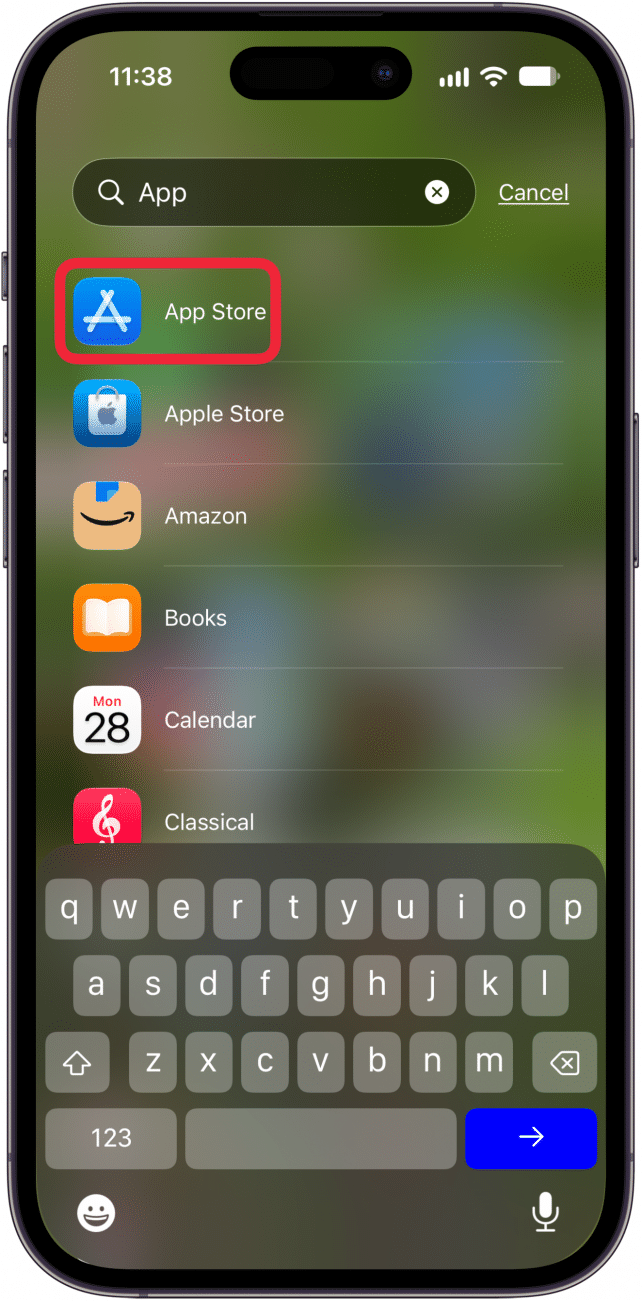
- Open the App Store.
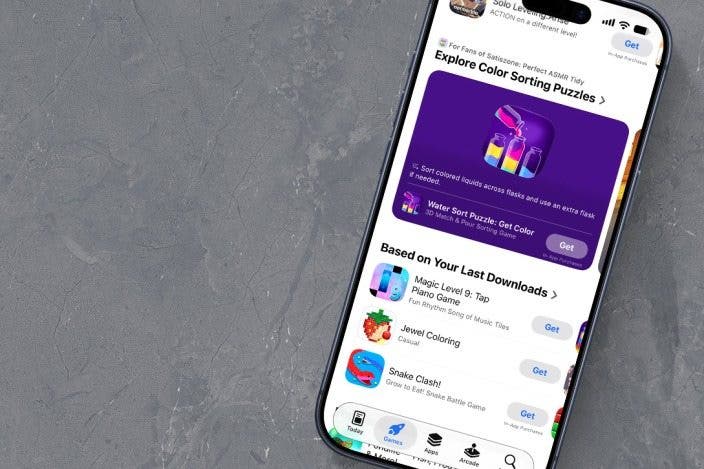
- You can browse apps with the help of the tabs at the bottom: Today shows the popular apps of the current day. Games is for popular games, Apps is for a general overview of what’s popular and new in the App Store, and Arcade is a paid subscription service for iOS-compatible games.
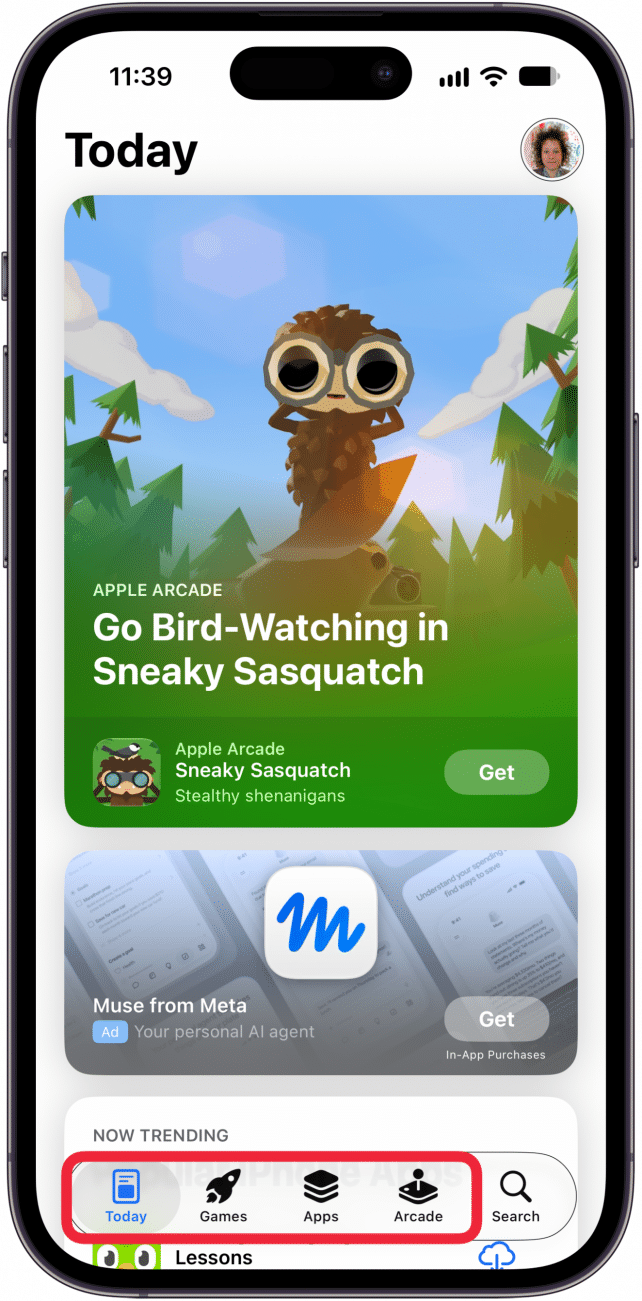
- Tap on any tab to scroll through apps in those categories.
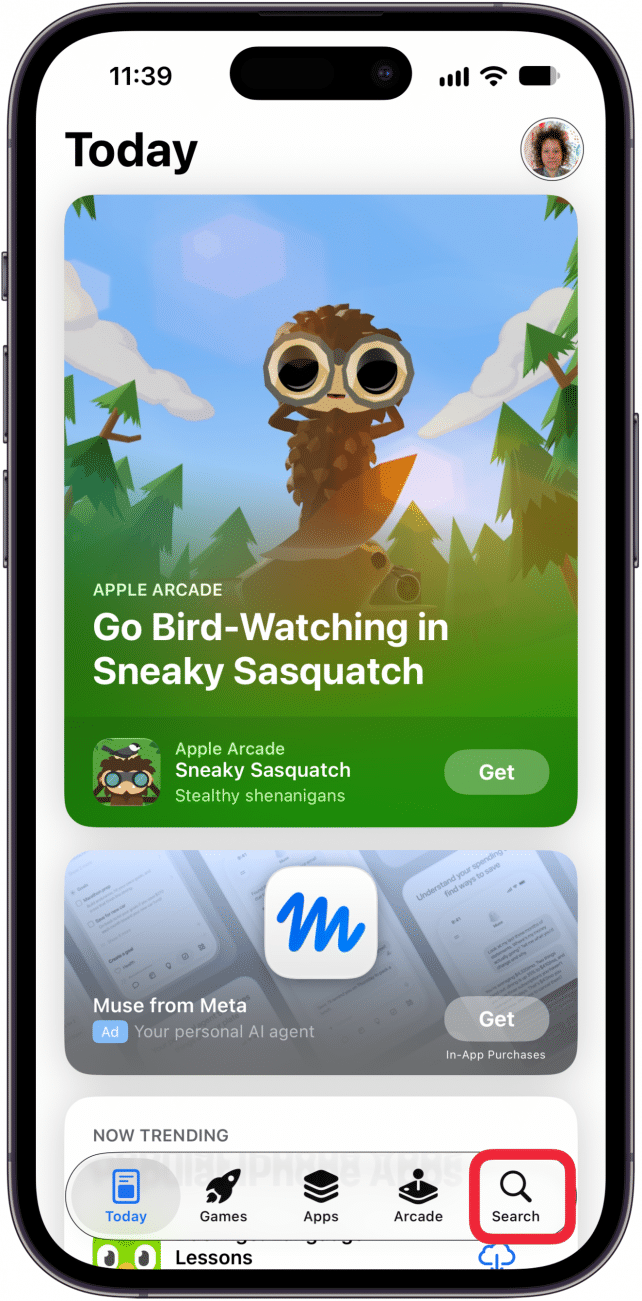
- Or you can search the App Store using the Search tab. Tap Search and enter an app name or a description of the type of app you want to install.
How to Tell If an App Is Free or Paid (or Has In-App Purchases)
Now that you know how to find apps, let's cover how to know if an app is free, and whether or not they have in-app purchases.
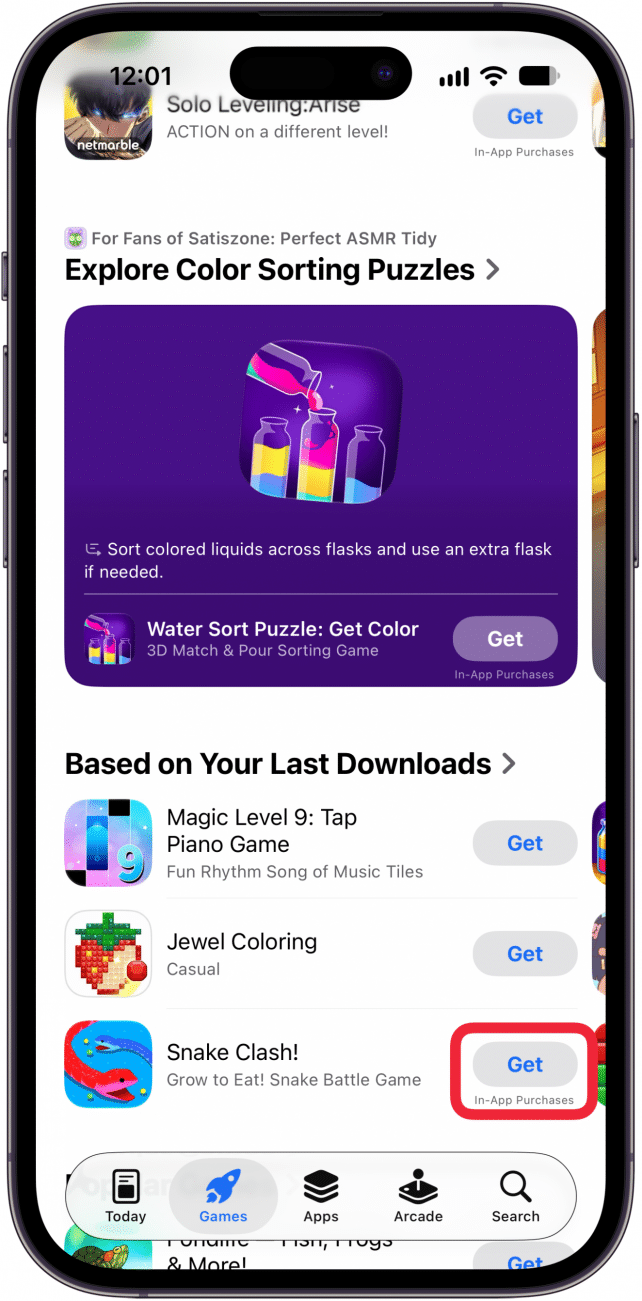
- Free apps will say Get to the right of the app name.
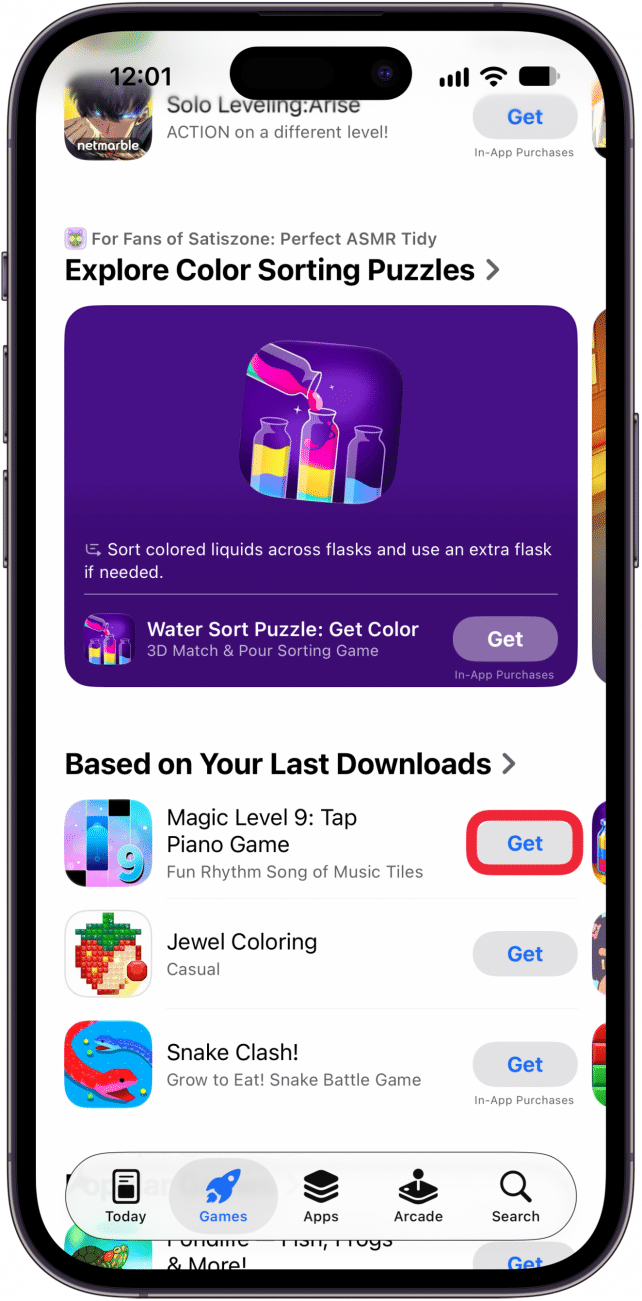
- Paid apps will show the price to the right of the app name.
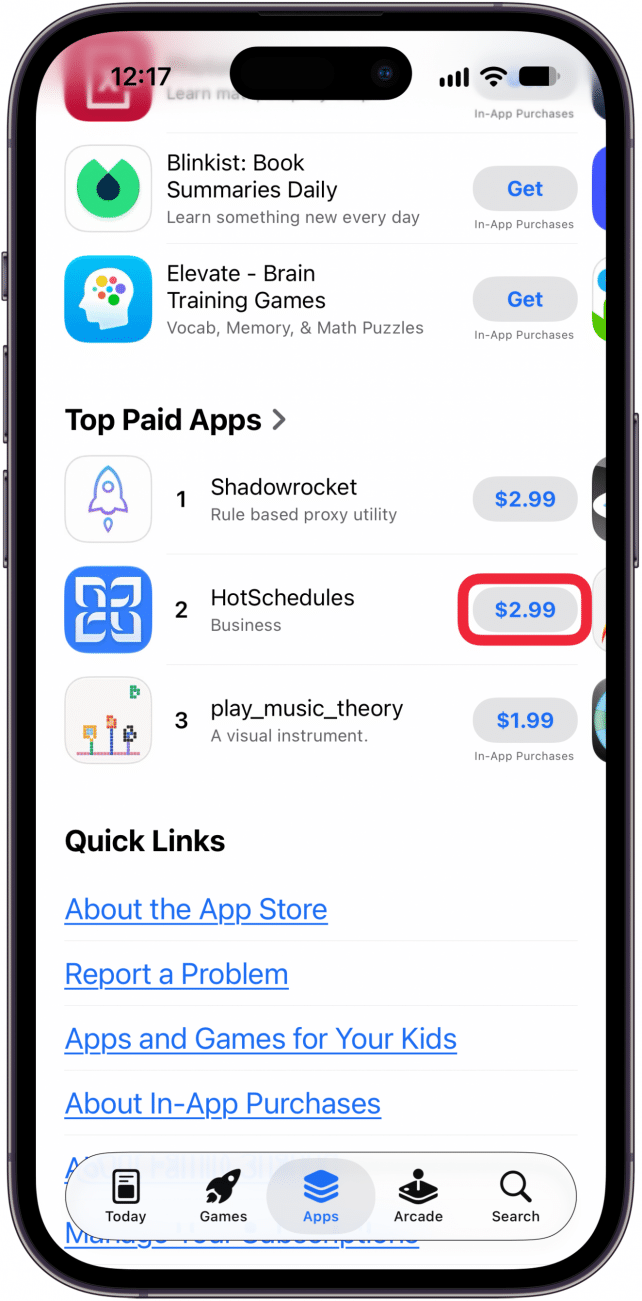
- If an app offers in-app purchases, it will say so under Get/the price.
How to Purchase & Download an App
Now that you know how to find apps, and how to know if those apps are free or cost money, let's go over how to download an app to an iPhone or iPad.
Note: You will need to have an Apple ID and an up-to-date iTunes billing method set up in order to purchase apps. Take a moment to set up an Apple ID and make sure you have an up-to-date card in your Apple Wallet if you need to.
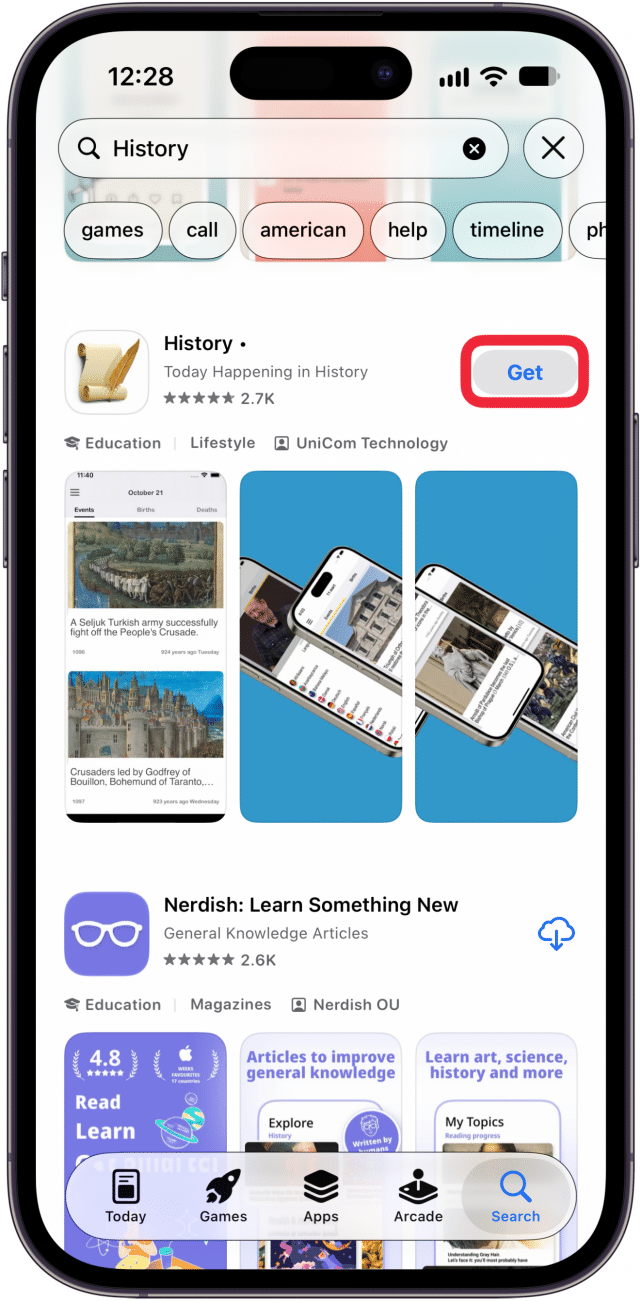
- Tap Get, or the listed price if it's a paid app.
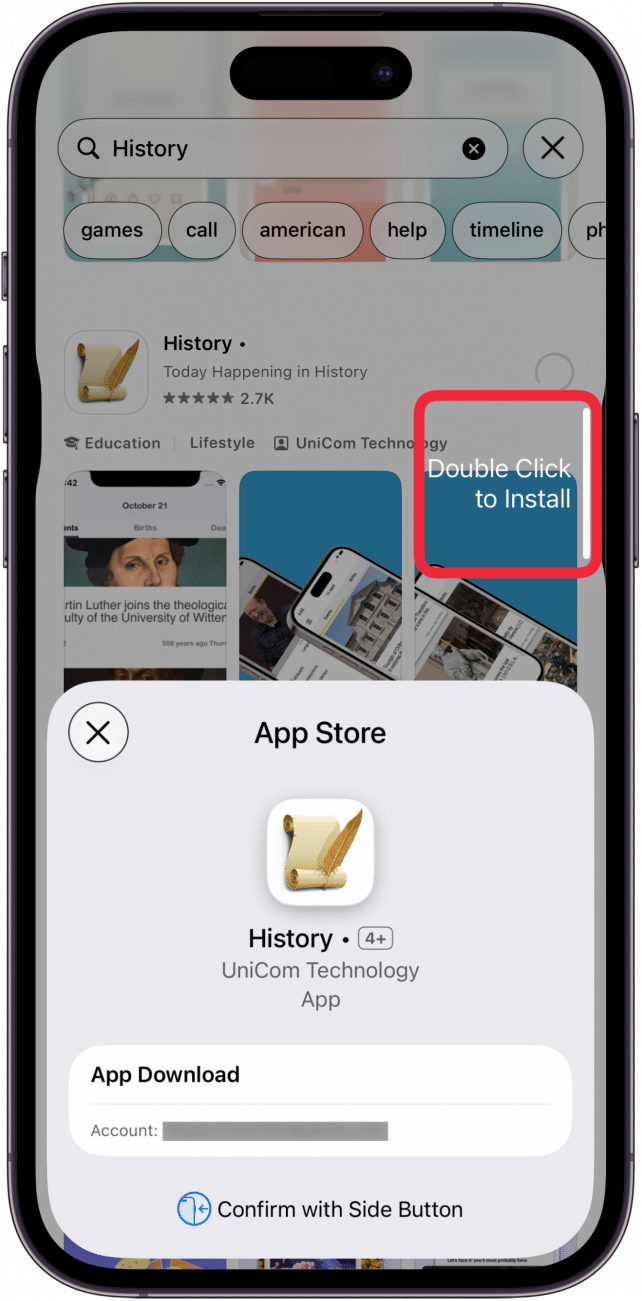
- When prompted, use Face or Touch ID to confirm the purchase. Or enter your Apple ID password if you don't have Face or Touch ID. Then, double click to install.
- The app will automatically download and install.
Now you know how to find, purchase, and install apps on your iPhone. For more great app tutorials, check out our free Tip of the Day.
More On: App Store
Top image credit: The-DesignStudio / Shutterstock.com

Every day, we send useful tips with screenshots and step-by-step instructions to over 600,000 subscribers for free. You'll be surprised what your Apple devices can really do.

Hallei Halter
Hallei is a 2018 graduate of Maharishi University of Management with a BFA in Creative & Professional Writing. She's currently working on a novel about people using witchcraft to clean their houses.
 Rhett Intriago
 Olena Kagui
 Rachel Needell
 Leanne Hays
 Amy Spitzfaden Both
 Susan Misuraca