How to Connect a Bluetooth Device to Your iPhone & iPad

Leanne puts her love of troubleshooting and repair to use managing our Ask an Expert Facebook group and has authored hundreds of how-to, Apple news, and gear review articles.
Learn More Leanne puts her love of troubleshooting and repair to use managing our Ask an Expert Facebook group and has authored hundreds of how-to, Apple news, and gear review articles.
Learn MoreOne of the best parts of modern technology is the ability to wirelessly connect your iPhone to Bluetooth devices. However, getting a Bluetooth device set up and paired with your iPhone can be a little tricky. Here's how to add a Bluetooth device to your iPhone.
Why You'll Love This Tip
- Learn how to set up new Bluetooth devices on your iPhone.
- Here's how to pair Bluetooth to your iPhone: open the Settings app, tap Bluetooth, tap the new device, then tap Connect.
How to Pair Bluetooth Devices to Your iPhone & iPad
System Requirements
This tip was performed on an iPhone 17 Pro running iOS 26.5. Learn how to update to the latest iOS.
To get started using a Bluetooth device, whether it's JBL, Bose, Sony, or some other brand, you'll need to pair it with your iPhone. To pair your iPhone with a Bluetooth device, the Bluetooth device needs to be discoverable. You also need to ensure you have Bluetooth enabled on your iPhone.
- First, to ensure Bluetooth is enabled on your iPhone, open Settings.
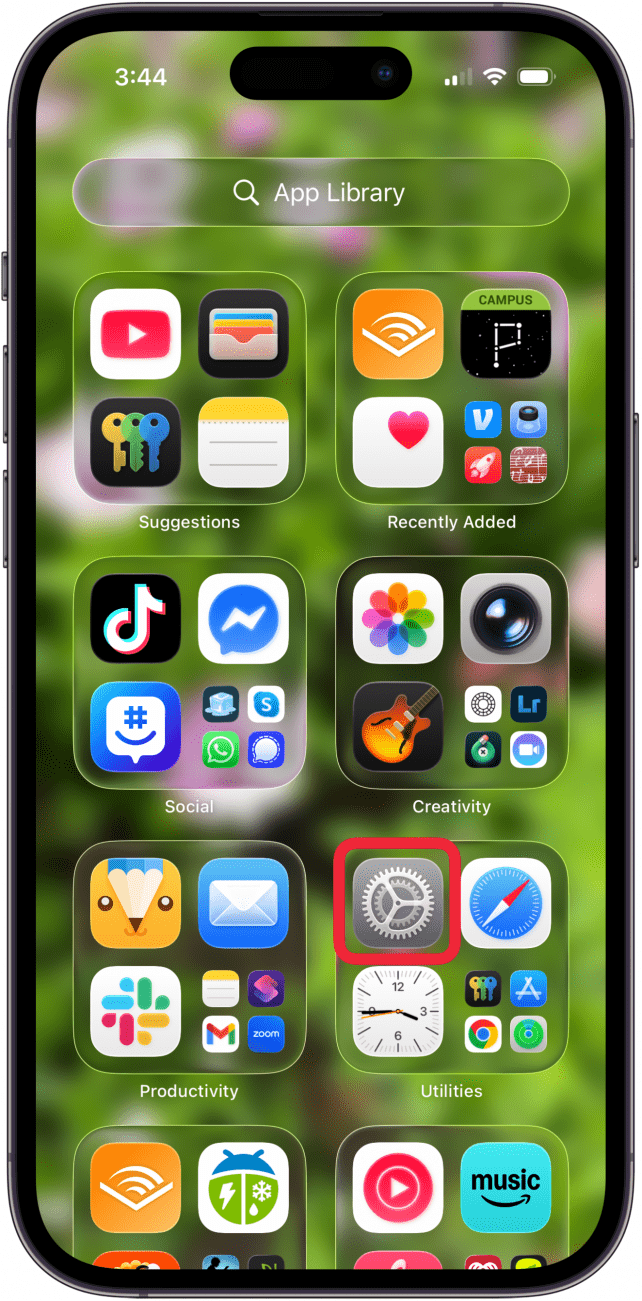
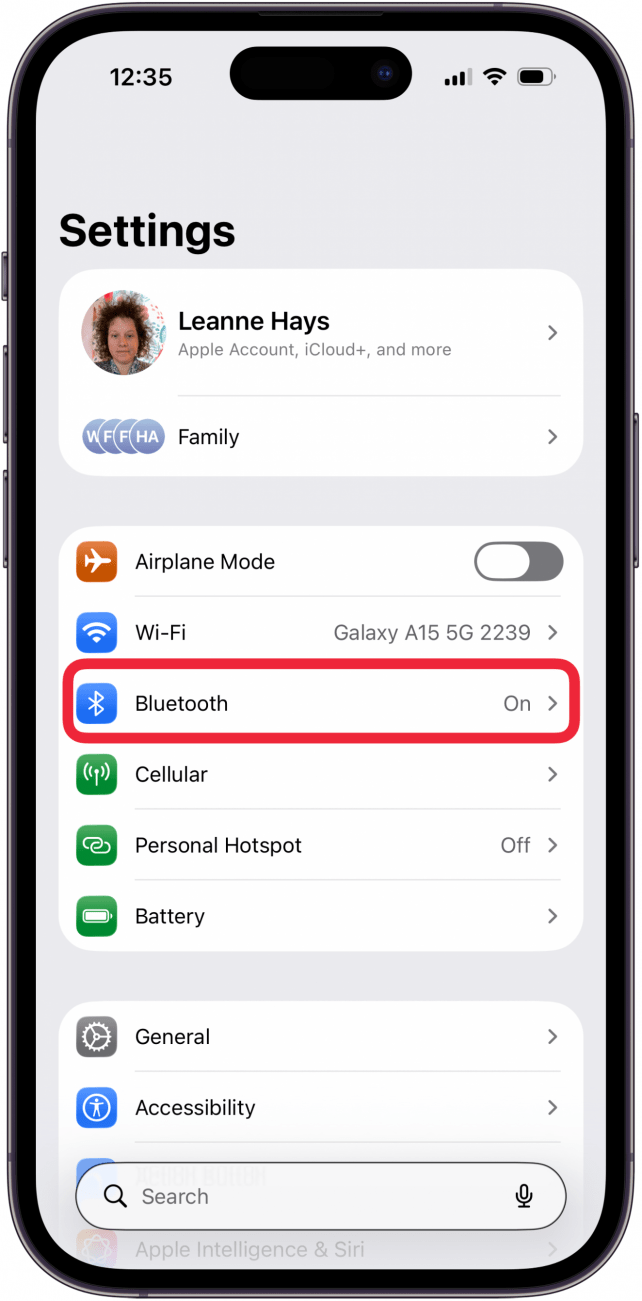
- Tap Bluetooth.
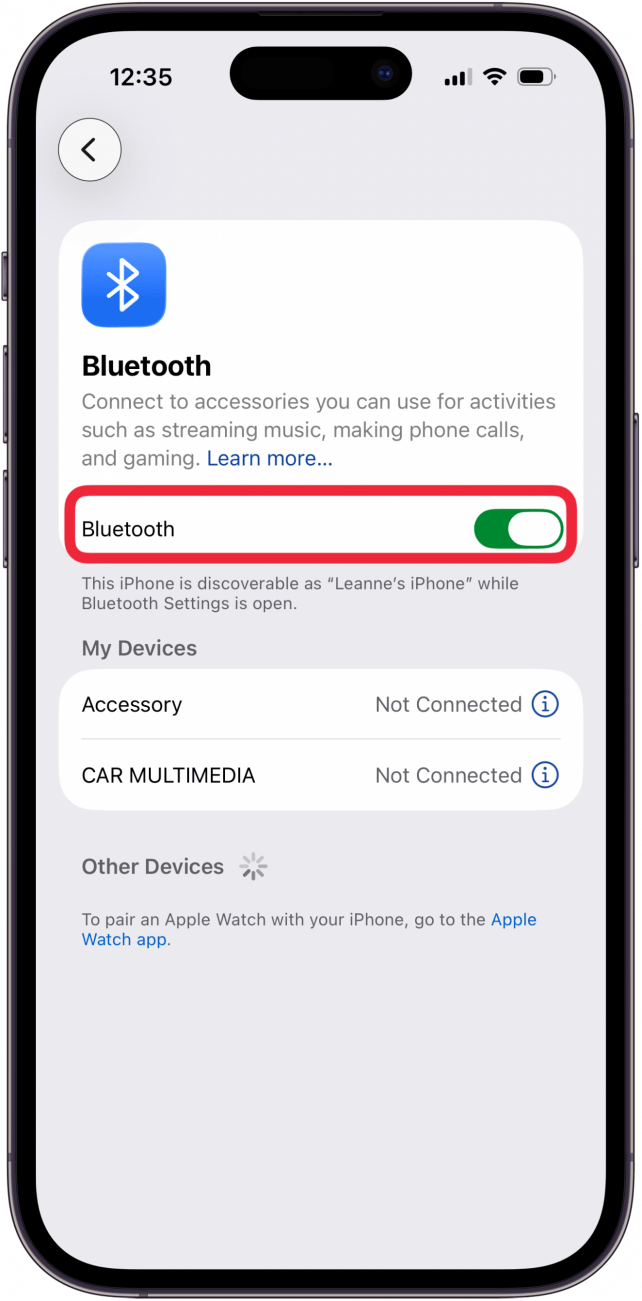
- Make sure Bluetooth is toggled on. Now, your iPhone is discoverable. This is where all your paired devices will be listed and where you will be able to find new devices to connect to.
- Now, turn on your device or press the Bluetooth button (if there is one). Usually, a light will begin to blink to alert you that the device is in pairing mode. This means it's discoverable.
 Image from Wikipedia
 - On the Bluetooth Settings page, you should see the new device pop up under Other Devices; tap the device.
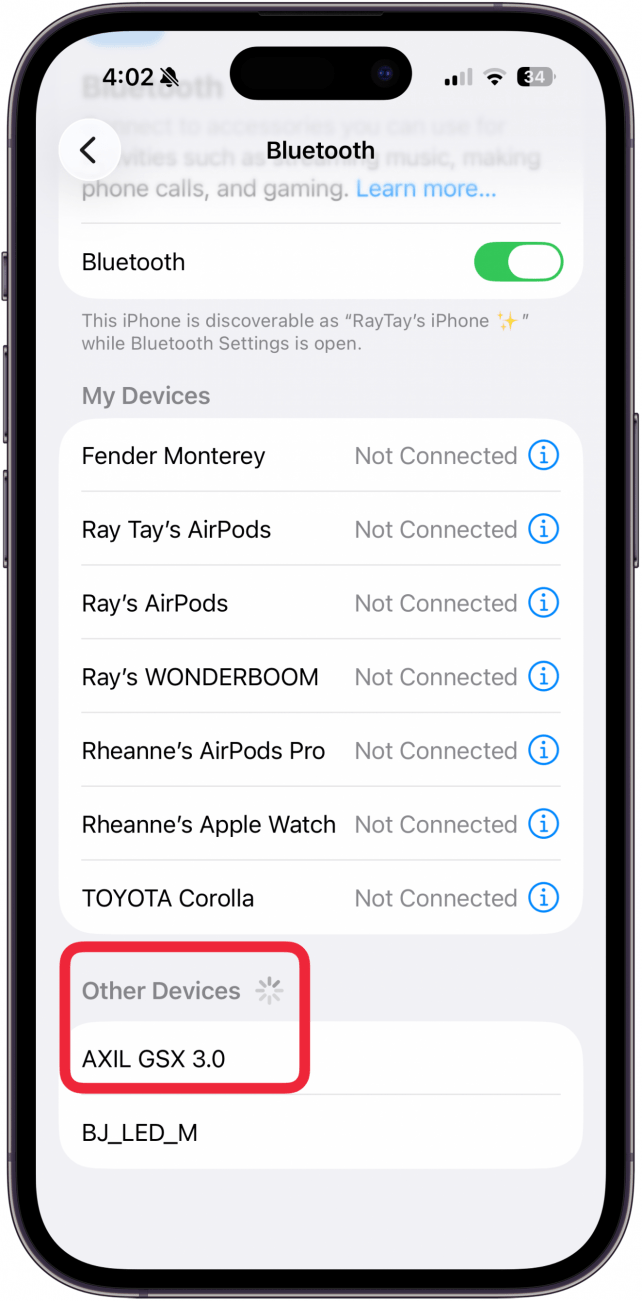
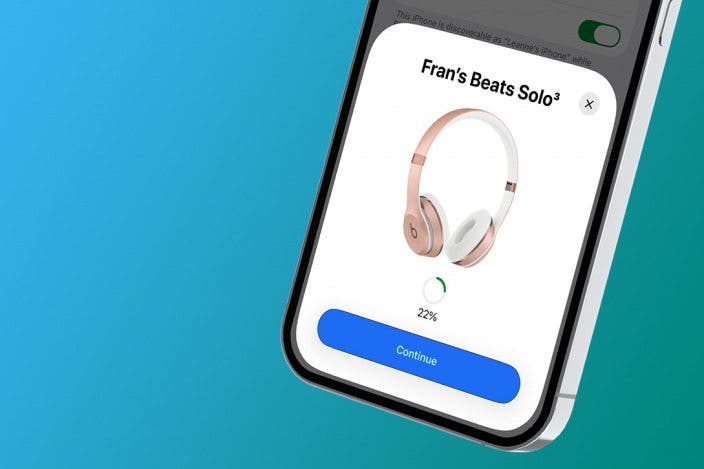
- Alternatively, you may see a pop-up of the new device and directions on how to connect it.
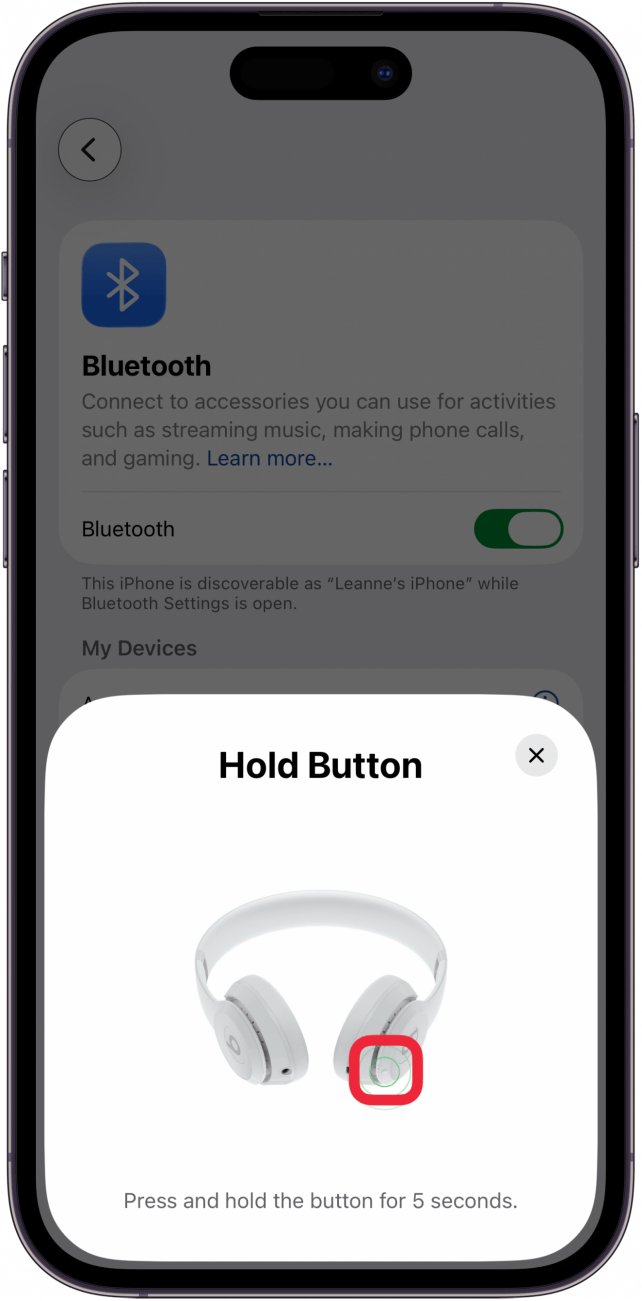
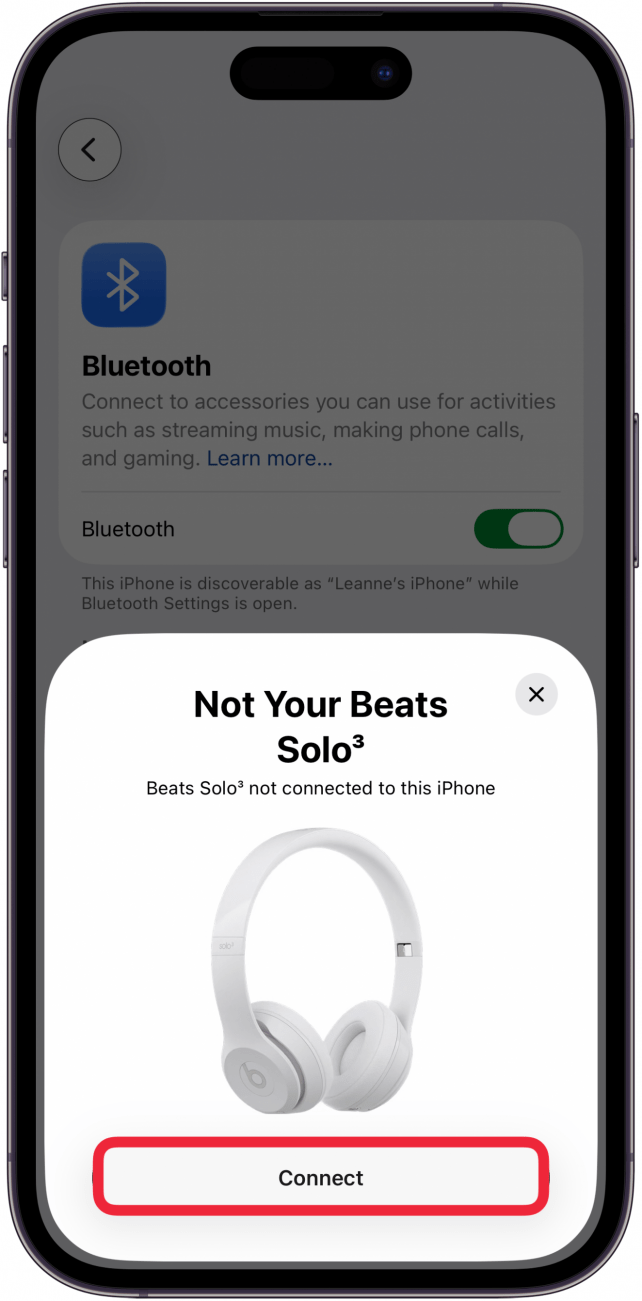
- Tap Connect.
- Once connected, you will be able to see the battery life of the device. Tap Continue to use the new device!
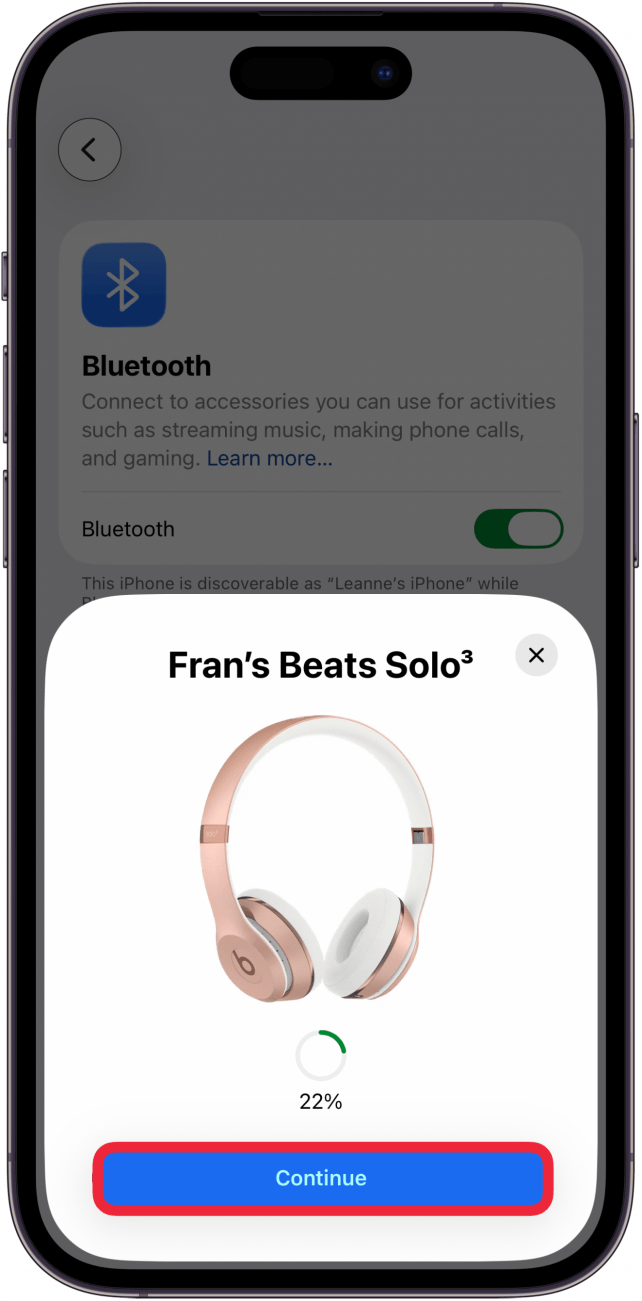
That's how you pair a Bluetooth device to an iPhone or iPad. Now, you can play your iPhone audio through any Bluetooth device and get grooving! If you like learning about using your iPhone, be sure to sign up for our free Tip of the Day.

Every day, we send useful tips with screenshots and step-by-step instructions to over 600,000 subscribers for free. You'll be surprised what your Apple devices can really do.

Leanne Hays
Leanne Hays has more than sixteen years of experience writing for online publications. As a SEO Specialist and Feature Writer for iPhone Life, she has authored hundreds of how-to, Apple news, and gear review articles, as well as a comprehensive Photos App guide. Leanne holds degrees in education and science and loves troubleshooting and repair. This combination makes her a perfect fit as manager of our Ask an Expert service, which helps iPhone Life Insiders with Apple hardware and software issues.
In off-work hours, Leanne is a mother of two, homesteader, audiobook fanatic, musician, and learning enthusiast.
 Rhett Intriago
 Olena Kagui
 Leanne Hays
 Rachel Needell

 August Garry