How to Add Calendar Events to iPhone Using Siri AI

In the last 10 years, Olena has been published in dozens of publications internationally and written hundreds of how-to articles and complex guides about Apple products, software, and apps.
Learn More In the last 10 years, Olena has been published in dozens of publications internationally and written hundreds of how-to articles and complex guides about Apple products, software, and apps.
Learn MoreMy favorite way to use Apple Intelligence is by having it perform tedious daily tasks for me to save me the time and effort. Since updating to iOS 27, it is incredibly easy to add an event or even multiple events to the Calendar app just by asking Siri. Events can be added from a photo or screenshot and even a description sent in a text or email or published on a website.
Why You'll Love This Tip
- Save time adding Calendar events manually and let AI do all the work for you.
- Add multiple events to your Calendar simultaneously with just one Siri request.
How to Use Siri to Add Calendar Events in Seconds
System Requirements
This tip was performed on an iPhone 17 Pro Max running iOS 27. To get Siri AI, you will need an iPhone 15 Pro or later running iOS 27. Find out how to update to the latest version of iOS.
Adding an event to the Calendar app isn't difficult but it takes time that can be better spent, which is why I've started letting AI schedule everything for me. Before Siri got smarter, it was already possible to use Visual Intelligence to create a Calendar event from the information on a screenshot, but you can now skip the step of taking a screenshot that you'll just have to delete later. You'll need to make sure that Location Services are turned on for the new Siri AI app.
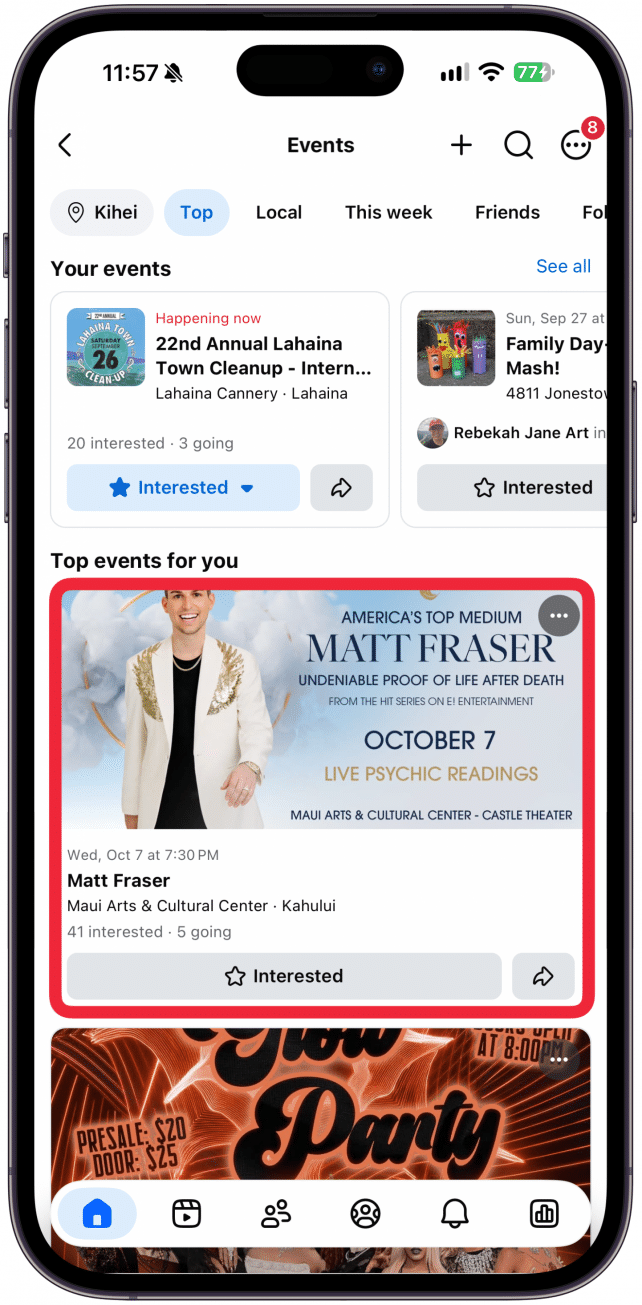
- Navigate to a website or app that shows an event flier or description, I will demonstrate with an event in the Facebook app.
- Activate Siri in your preferred way, I like to do this by holding in the Side button.
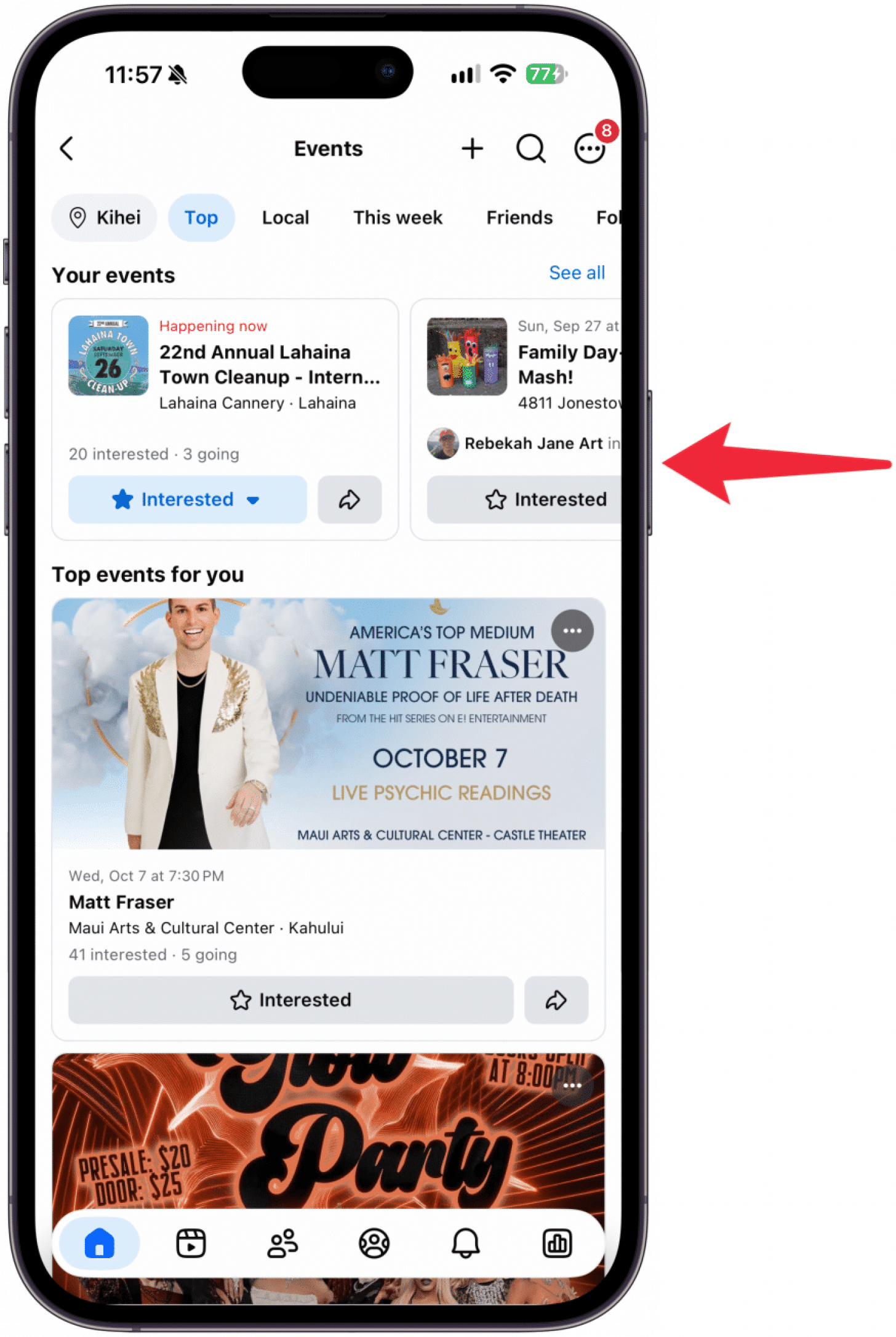
- Once Siri is listening, say something like "Add this event to my Calendar." If there are multiple events or event times shown on your screen, Siri might ask you to specify which event, in which case you can respond with the event title or ask Siri to add both/all events on your screen.
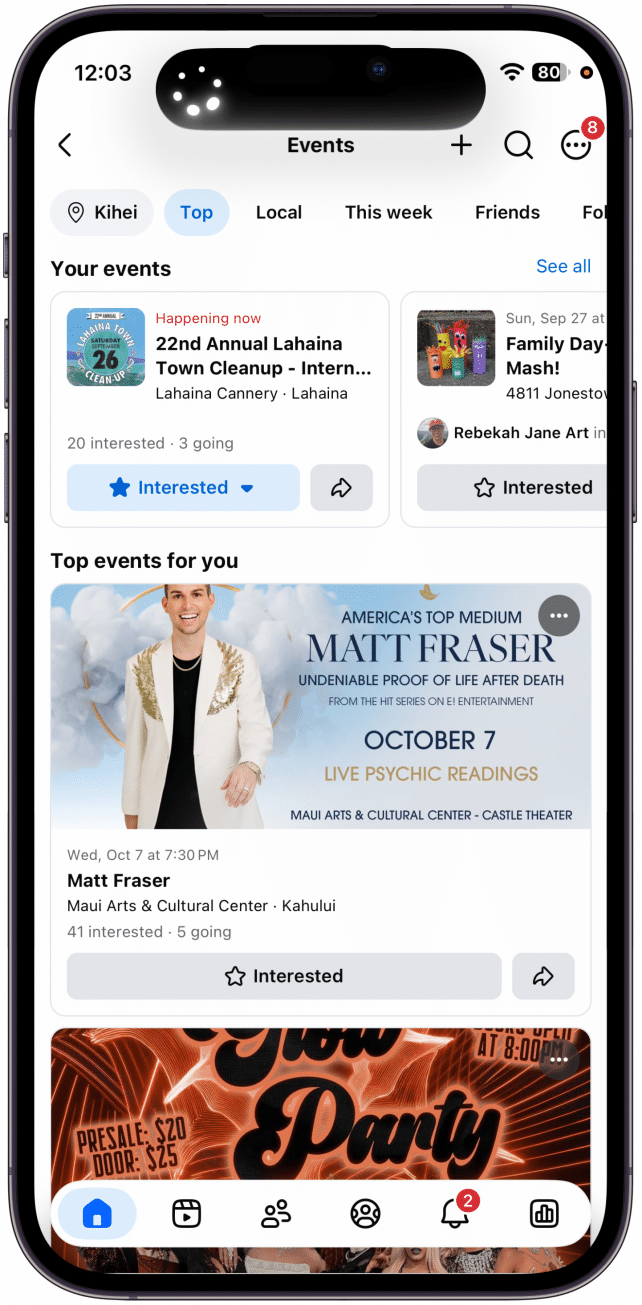
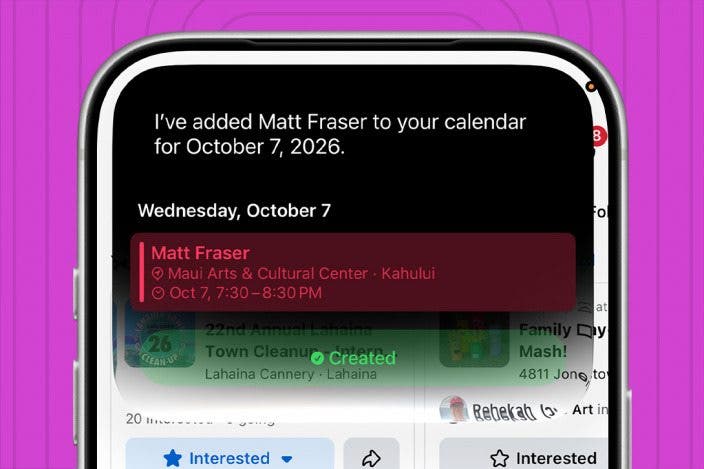
- Siri will then confirm that it added the event to your Calendar and will show the details on screen.
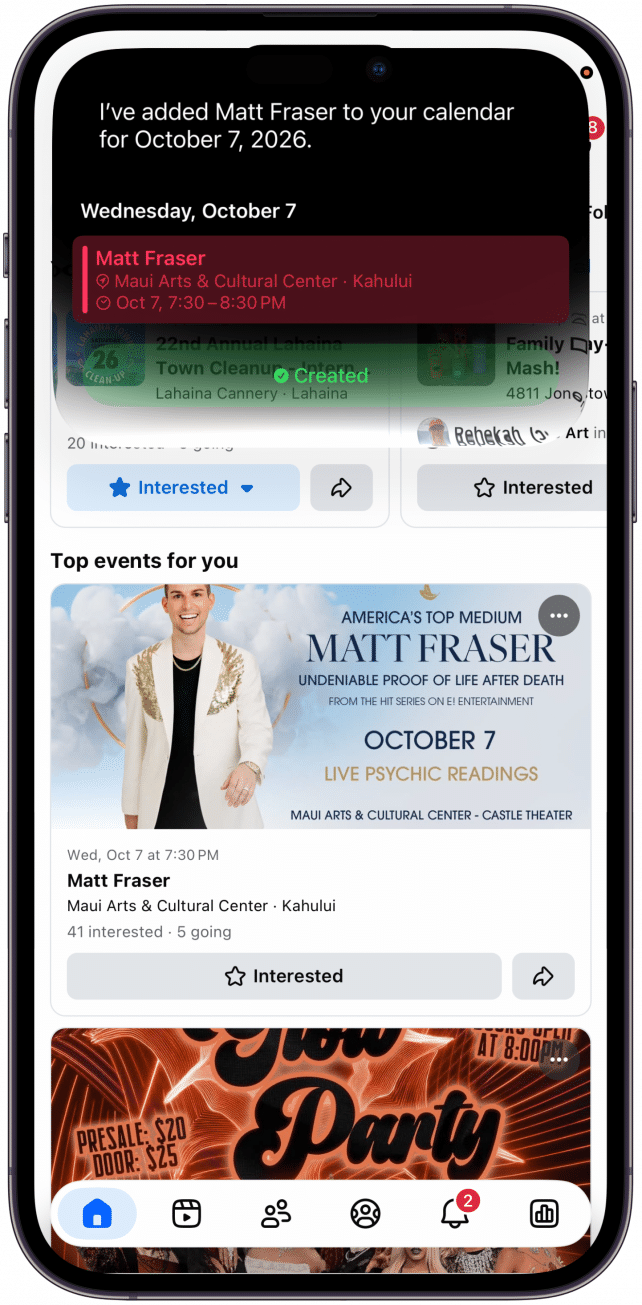
I recommend double checking the event details and maybe even checking the Calendar app to make sure the event is there. AI isn't perfect and can make mistakes just like a human can.
Now you know how to use Siri to use information on your screen to create an event in your Calendar app! Next, learn how to write emails with Siri AI.
More On: Apple Intelligence

Every day, we send useful tips with screenshots and step-by-step instructions to over 600,000 subscribers for free. You'll be surprised what your Apple devices can really do.

Olena Kagui
Olena Kagui is a Feature Writer at iPhone Life. In the last 10 years, she has been published in dozens of publications internationally and won an excellence award. Since joining iPhone Life in 2020, she has written how-to articles as well as complex guides about Apple products, software, and apps. Olena grew up using Macs and exploring all the latest tech. Her Maui home is the epitome of an Apple ecosystem, full of compatible smart gear to boot. Olena’s favorite device is the Apple Watch Ultra because it can survive all her adventures and travels, and even her furbabies.

 Hal Goldstein
 Rhett Intriago
 Leanne Hays
 Susan Misuraca
 Linda Ruth
 Olena Kagui


 Amy Spitzfaden Both

 Cullen Thomas