How to Draw on Photos on iPhone & iPad

Leanne puts her love of troubleshooting and repair to use managing our Ask an Expert Facebook group and has authored hundreds of how-to, Apple news, and gear review articles.
Learn More Leanne puts her love of troubleshooting and repair to use managing our Ask an Expert Facebook group and has authored hundreds of how-to, Apple news, and gear review articles.
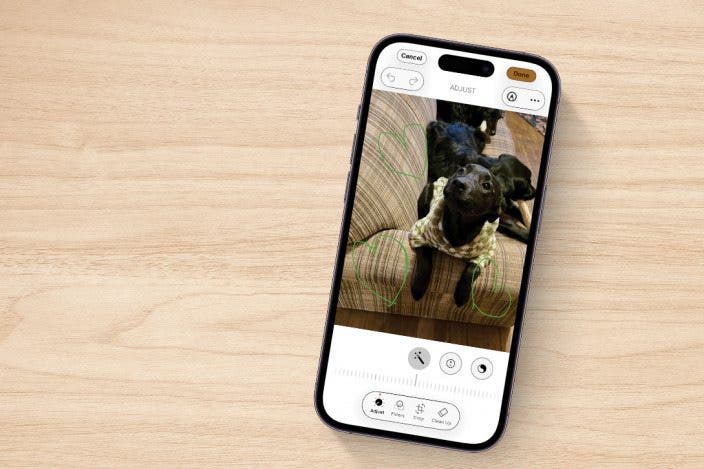
Learn MoreWant to customize your photos by drawing on them? We'll show you how to draw on photos on your iPhone and iPad with Markup.
Why You'll Love This Tip
- Learn how to draw on pictures on your iPhone or iPad using the Markup feature.
- You can change Markup tools, color, width, opacity, and more to make a dynamic drawing.
How to Draw on Pictures on iPhone & iPad
System Requirements
This tip works on iPhones running iOS 16 or later, and was tested on an iPhone 17 Pro running iOS 26. Find out how to update to the latest version of iOS.
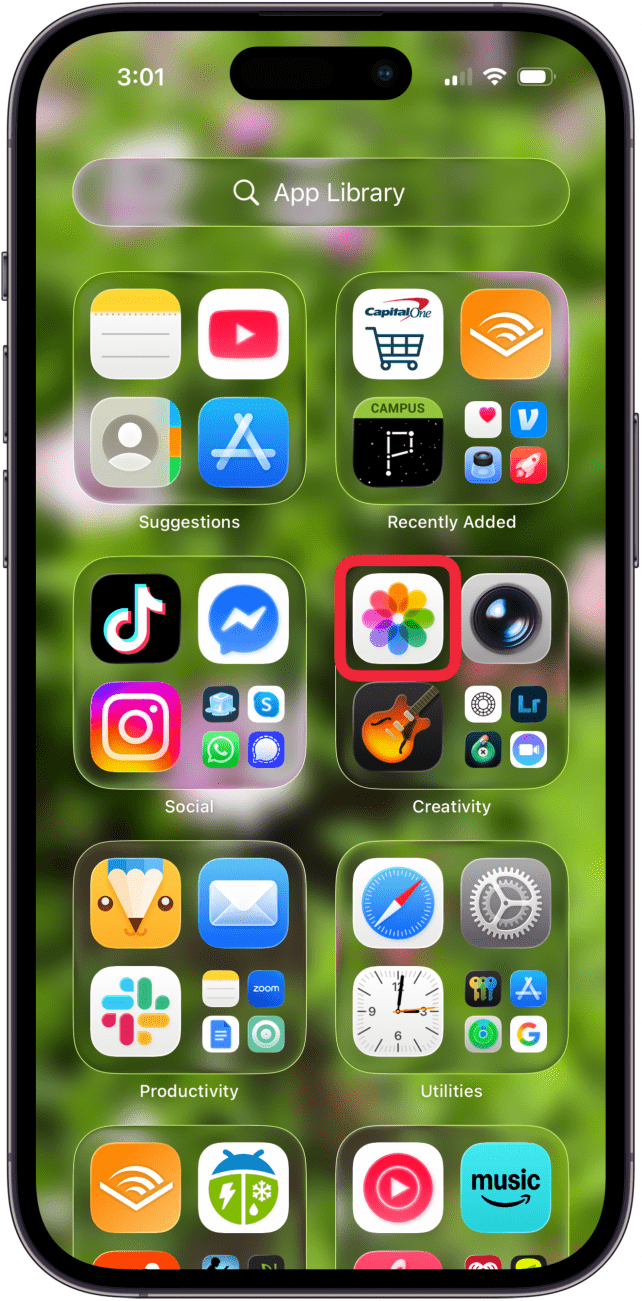
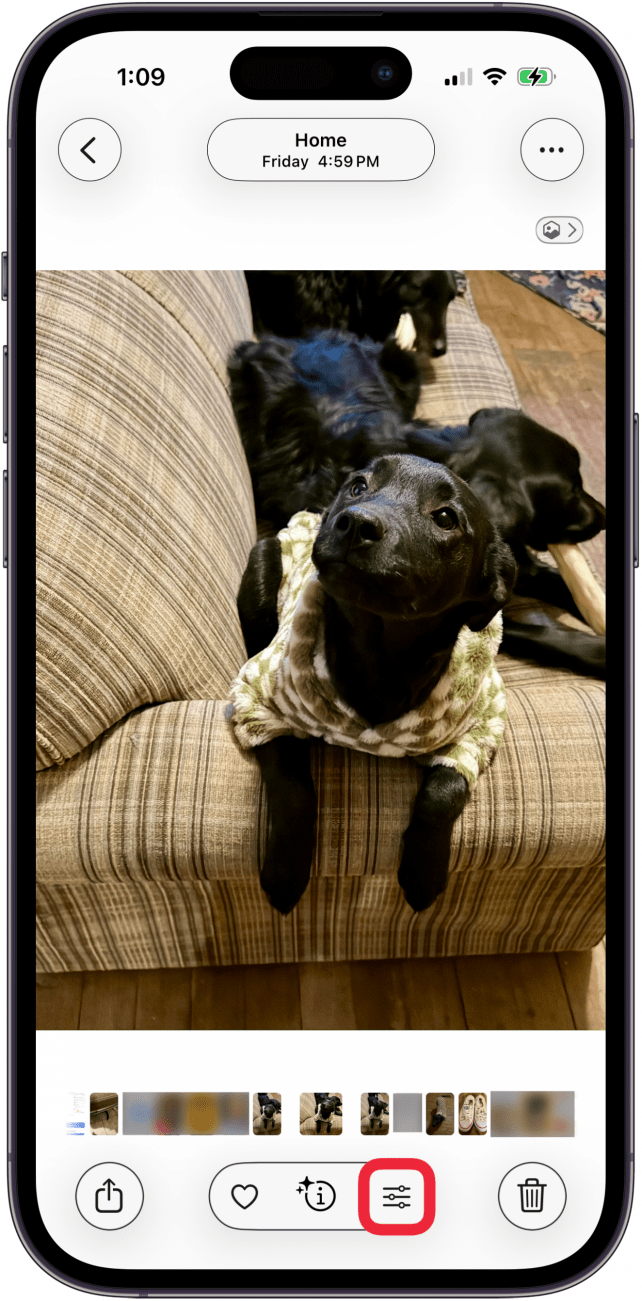
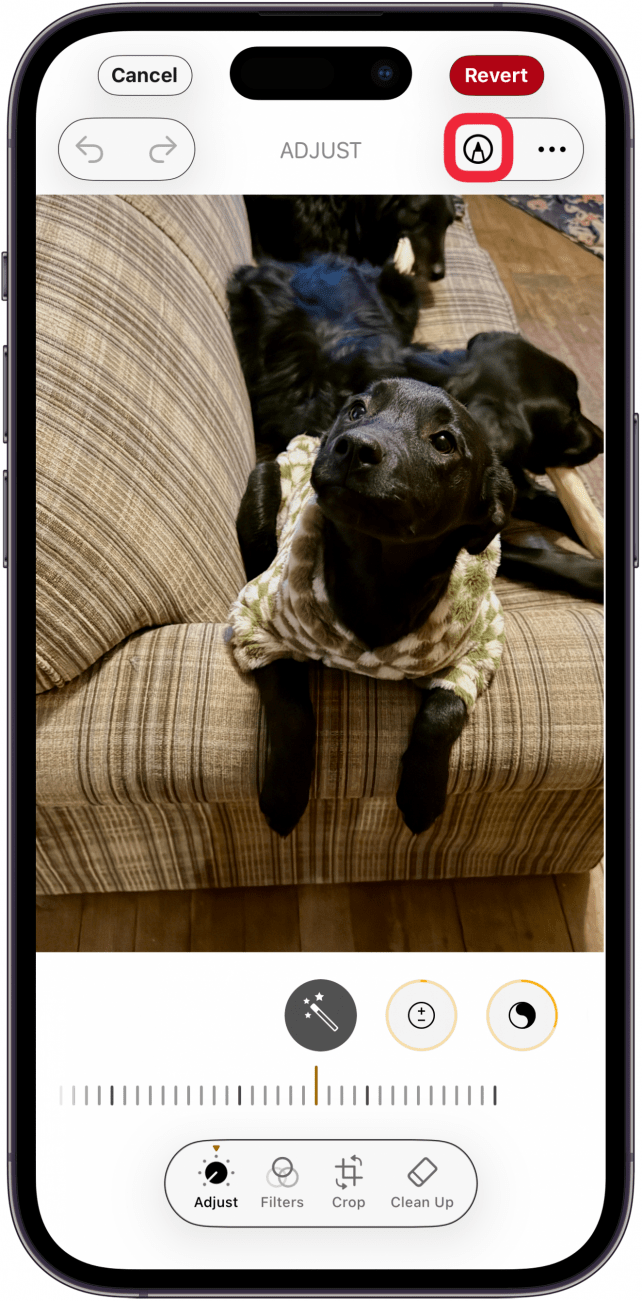
Want to add a doodle or a couple of handwritten words to a photo on your iPhone or iPad? Here's how to draw on photos on iPhone with Markup.
-
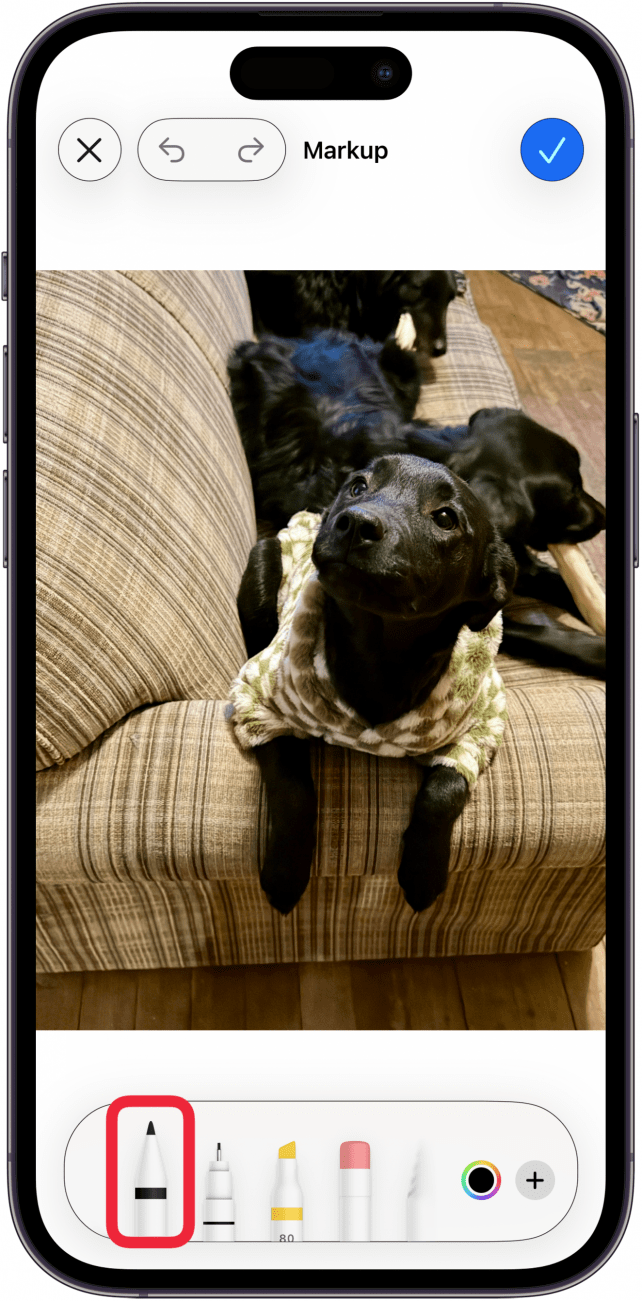
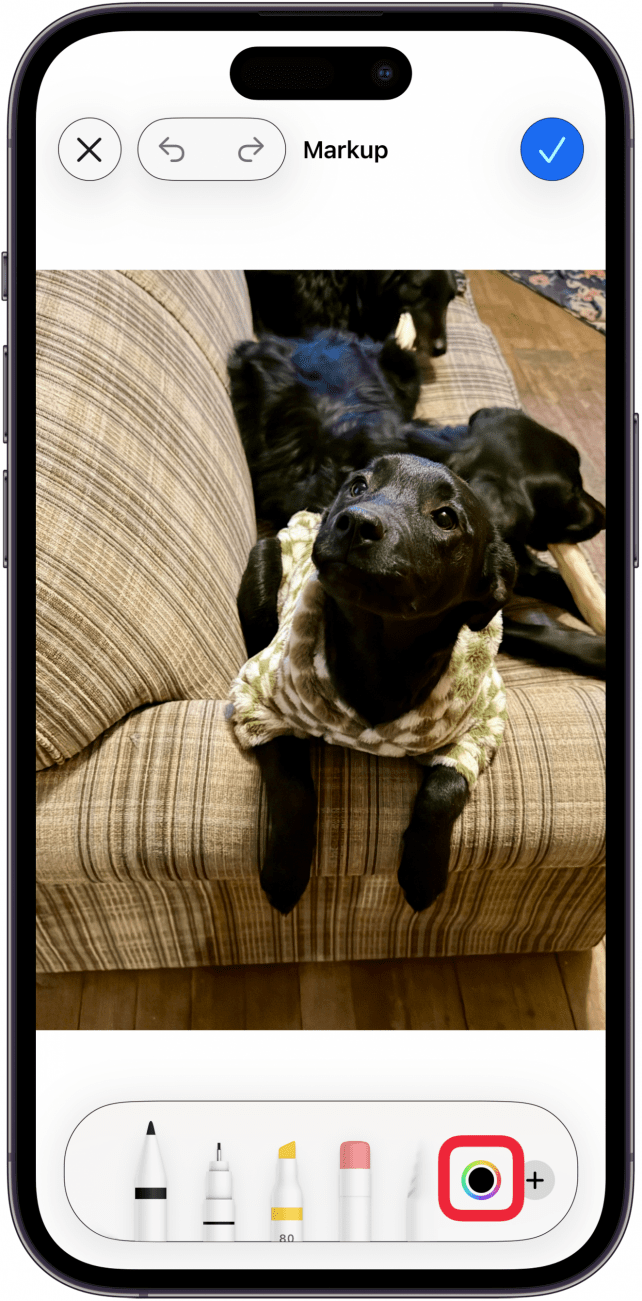
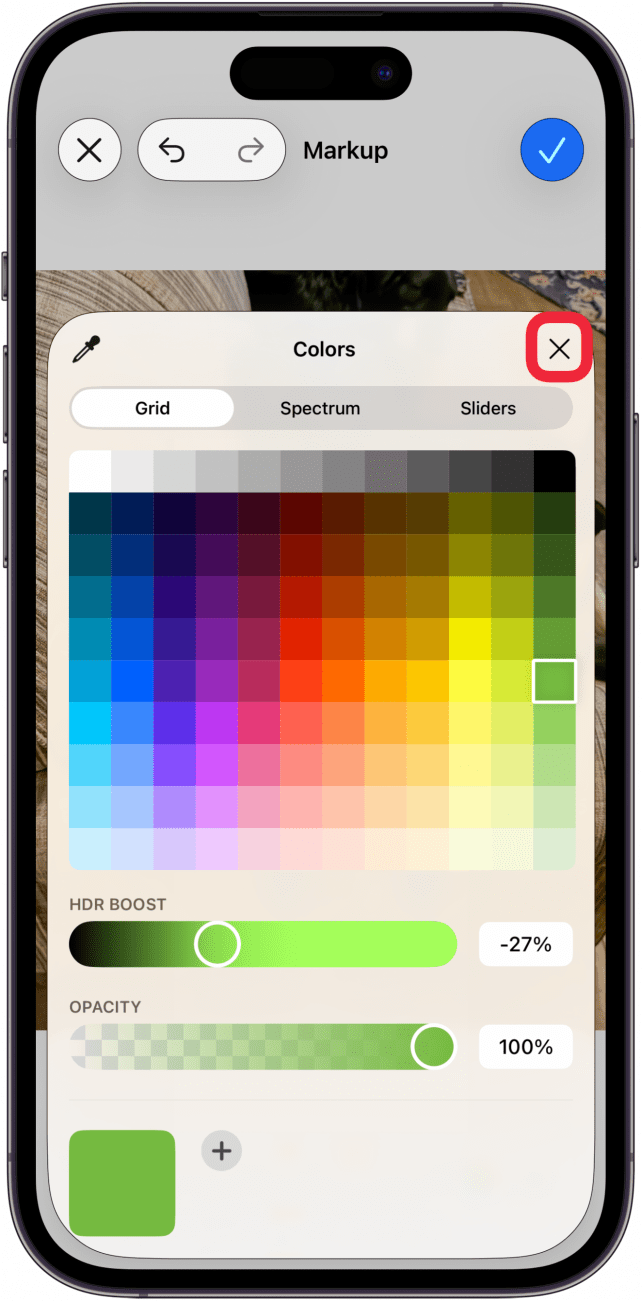
Tap a color, and use the sliders if you want to change HDR Boost and/or Opacity.

-
Tap the same tool again to change the color opacity and thickness.

-
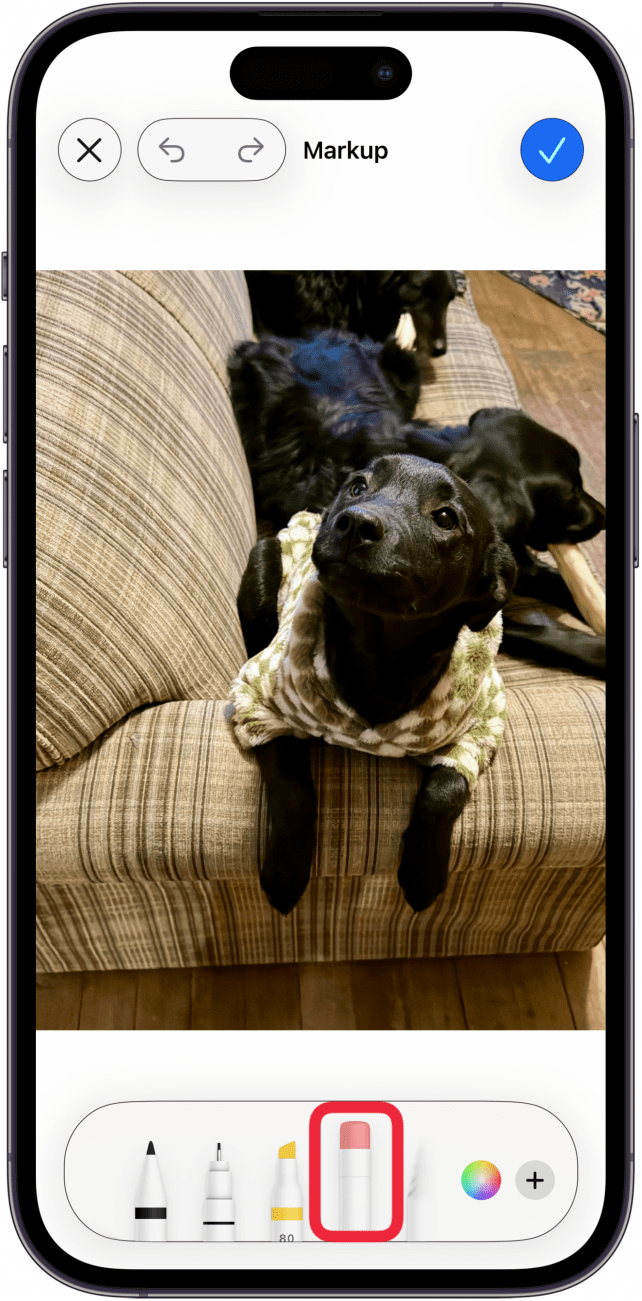
Tap the Eraser to erase any parts of your drawing you're not happy with.
-
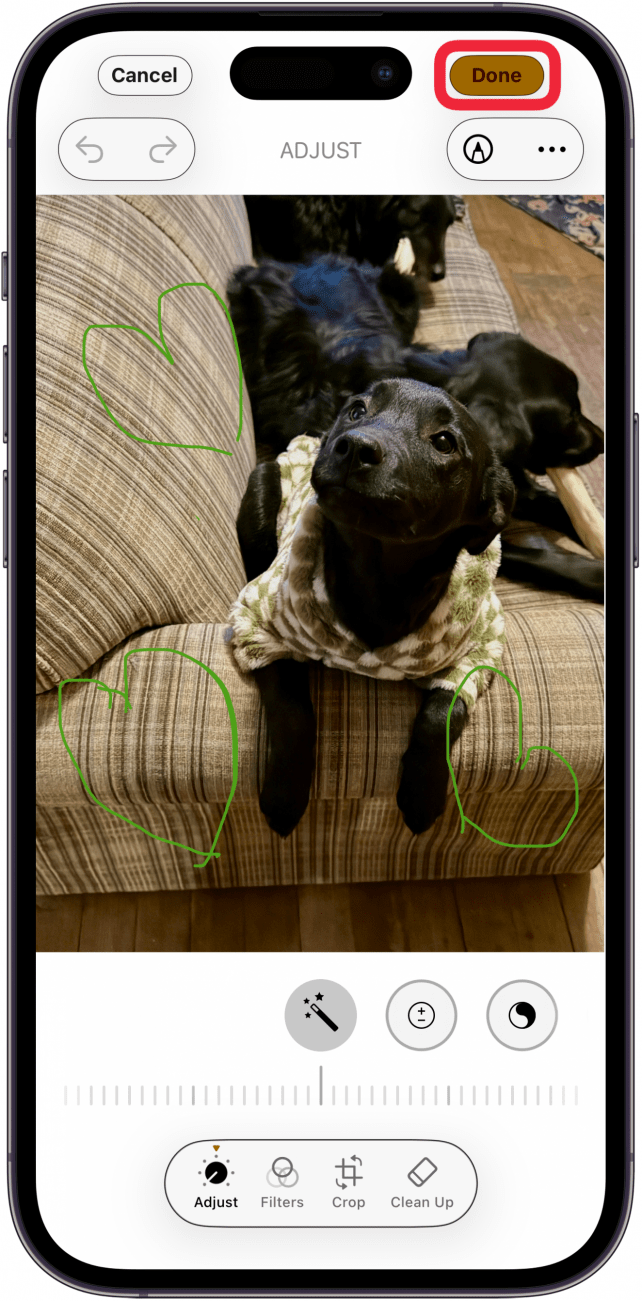
Tap the check mark in the blue circle when you're finished drawing.

More On: Editing Photos
Top image credit: wk1003mike / Shutterstock.com

Every day, we send useful tips with screenshots and step-by-step instructions to over 600,000 subscribers for free. You'll be surprised what your Apple devices can really do.

Leanne Hays
Leanne Hays has more than sixteen years of experience writing for online publications. As a SEO Specialist and Feature Writer for iPhone Life, she has authored hundreds of how-to, Apple news, and gear review articles, as well as a comprehensive Photos App guide. Leanne holds degrees in education and science and loves troubleshooting and repair. This combination makes her a perfect fit as manager of our Ask an Expert service, which helps iPhone Life Insiders with Apple hardware and software issues.
In off-work hours, Leanne is a mother of two, homesteader, audiobook fanatic, musician, and learning enthusiast.

 Rachel Needell
 Amy Spitzfaden Both
 Leanne Hays


 Susan Misuraca
 Rhett Intriago
 Olena Kagui