How to Get a Screenshot on iPad: The 4 Best Ways
Here are four easy ways to take a screenshot on an iPad, no matter which model you have.

Tamlin Day pairs a lifelong love of technology with a passion for teaching, bringing approachable Apple expertise to his work as a writer and educator at iPhone Life.
Learn More Tamlin Day pairs a lifelong love of technology with a passion for teaching, bringing approachable Apple expertise to his work as a writer and educator at iPhone Life.
Learn MoreIf you want to know how to take a screenshot on an iPad Pro or a different model, you've come to the right place. Whether or not your iPad has a Home button, we will teach you how to take iPad screenshots using your iPad’s physical buttons, an Apple Pencil, or Siri. Let’s check out four ways you can take screenshots on an iPad.
Related: How to Take a Screenshot on an iPhone without a Home Button
How to Take a Screenshot on an iPad with No Home Button
These steps will work if you have one of the following iPad models: iPad mini (6th generation), iPad Air (4th and 5th generations), iPad Pro 11-inch (1st–3rd generations), and iPad Pro 12.9-inch (3rd–5th generations).
- Navigate to the screen you want to capture.
- Press the Sleep/Wake button and either of the volume buttons simultaneously.

- Quickly release both buttons.
If your iPad goes dark, or if Siri responds, that means you held one of the buttons down too long or didn’t hold the buttons down at the same time. Just try again until you get your perfect screenshot.
How to Take a Screenshot on an iPad with a Home Button
These steps will work if you have one of the following iPad models: iPad mini 4, iPad mini (5th generation), iPad (5th–9th generations), iPad Air 2, iPad Air (3rd generation), iPad Pro 9.7-inch, iPad Pro 10.5-inch, and iPad Pro 12.9-inch (1st and 2nd generations).
- Navigate to the screen you want to capture.
- Press the Sleep/Wake button and the Home button simultaneously.
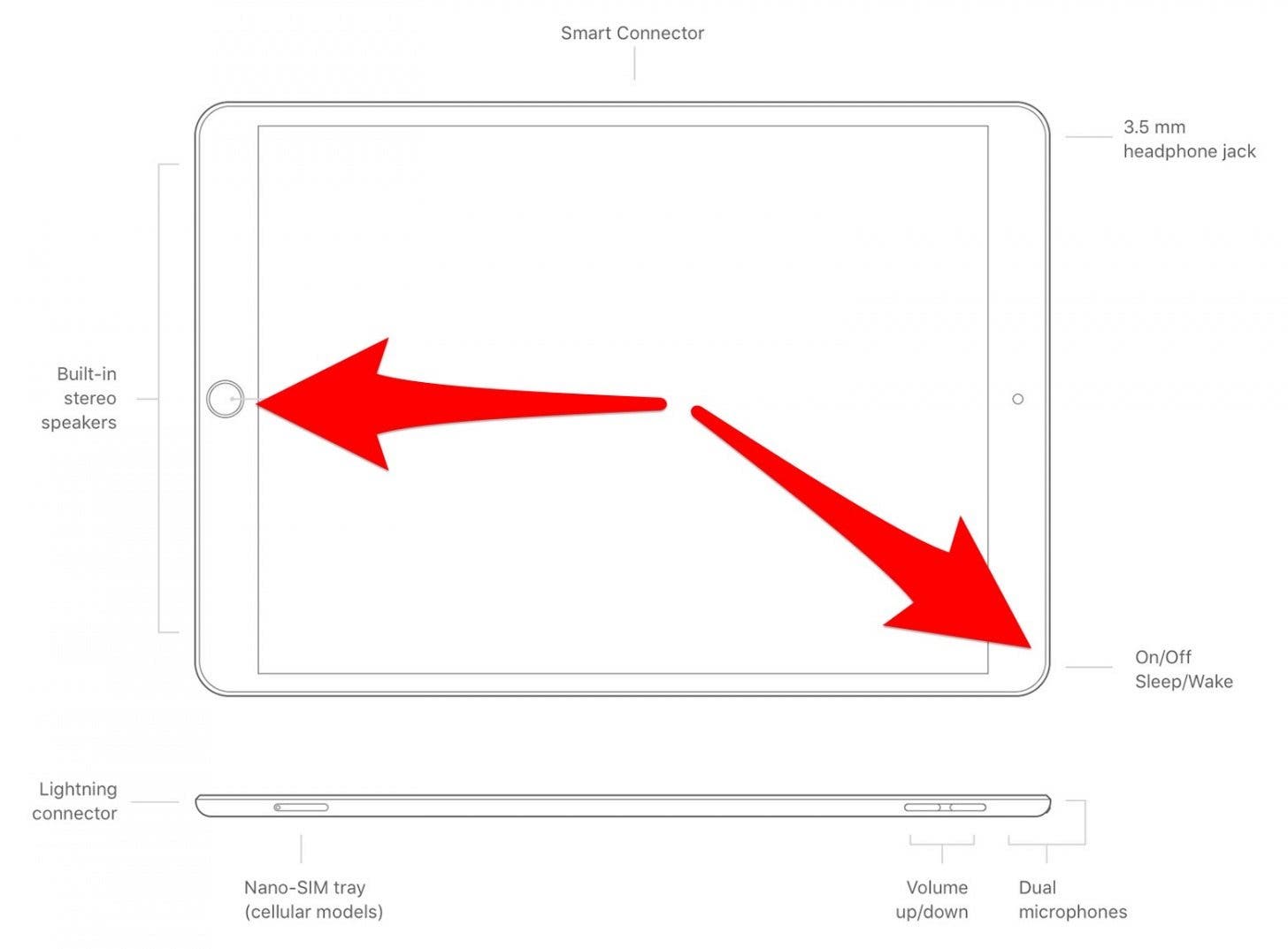
- Quickly release both buttons.
How to Take a Screenshot with Apple Pencil
If you have an Apple Pencil, this will work regardless of if your iPad has a Home button or not.
- Navigate to the screen you want to capture.
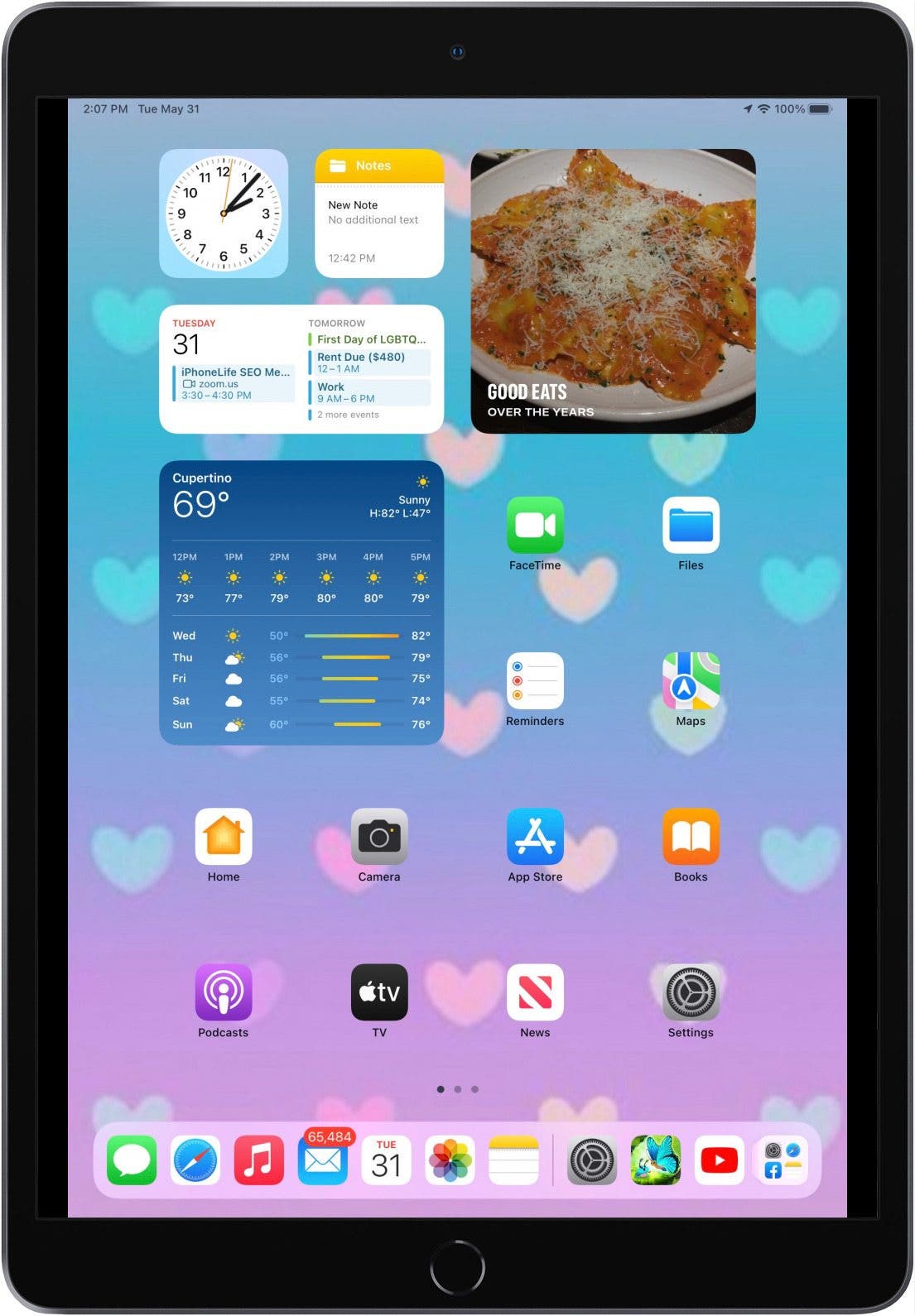
- Swipe your Apple pencil from either of the bottom corners of your iPad to the center of your screen.
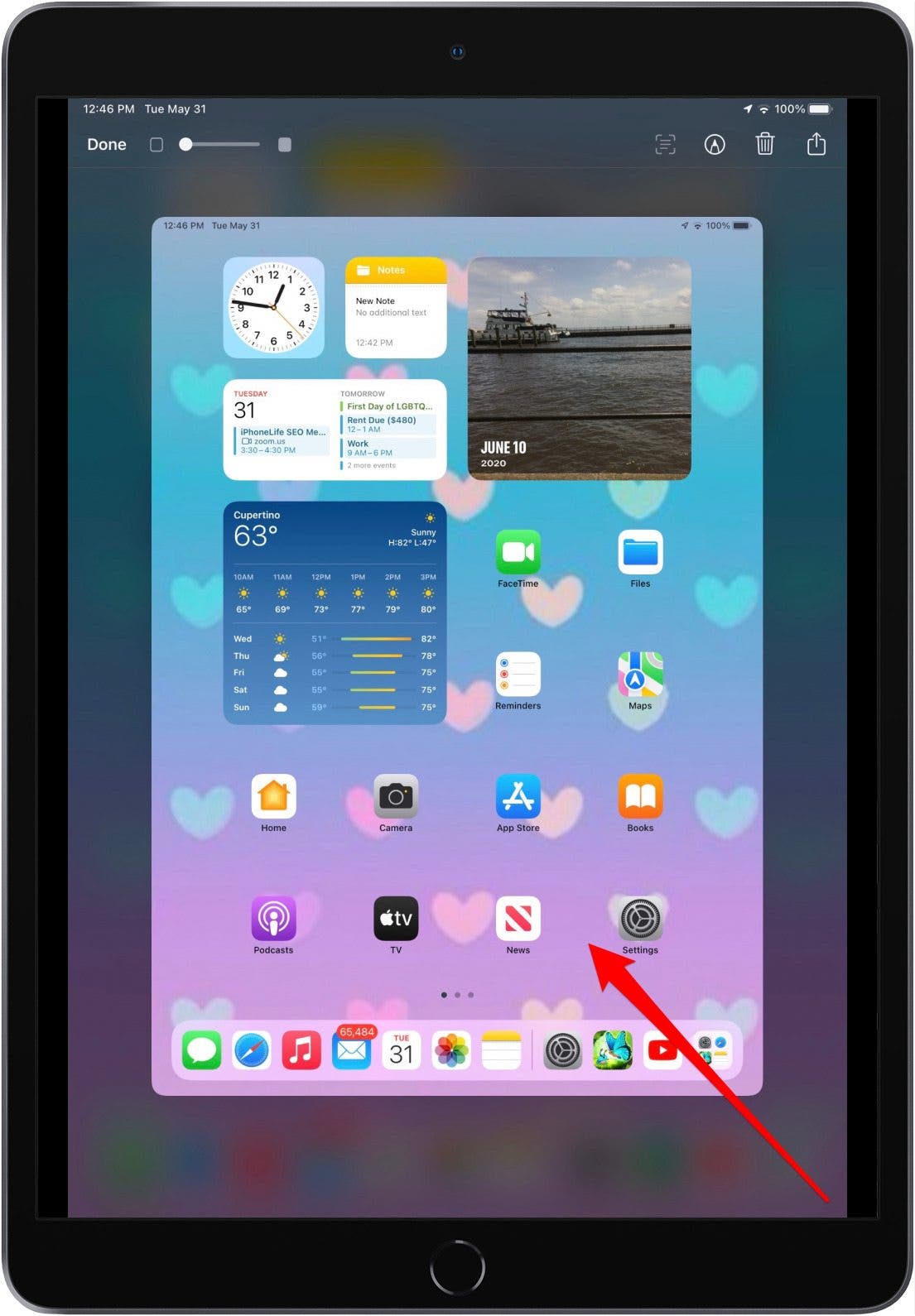
And that's it! Now you've got your screenshot.
How to Take a Screenshot on iPad with Siri
To take a screenshot with Siri, first, make sure Siri is set up. Then all you have to do is say, "Hey, Siri, take a screenshot." Et voilà!
It’s also good to note that some apps, like Netflix, will black out any screenshots for proprietary reasons. If taking screenshots using these methods isn’t working out for you, you could try enabling Assistive Touch or using your Apple Pencil to make taking screenshots easier. Whichever method you prefer, taking screenshots on your iPad is a great way to save all the important moments and information you want to keep.

Tamlin Day
Tamlin Day is a feature web writer for iPhone Life and a regular contributor to iPhone Life magazine. A prolific writer of tips, reviews, and in-depth guides, Tamlin has written hundreds of articles for iPhone Life. From iPhone settings to recommendations for the best iPhone-compatible gear to the latest Apple news, Tamlin's expertise covers a broad spectrum.
Before joining iPhone Life, Tamlin received his BFA in Media & Communications as well as a BA in Graphic Design from Maharishi International University (MIU), where he edited MIU's literary journal, Meta-fore. With a passion for teaching, Tamlin has instructed young adults, college students, and adult learners on topics ranging from spoken word poetry to taking the perfect group selfie. Tamlin's first computer, a Radioshack Color Computer III, was given to him by his father. At 13, Tamlin built his first PC from spare parts. He is proud to put his passion for teaching and tech into practice as a writer and educator at iPhone Life.
Related topics
Related Articles

 Olena Kagui

 Nicholas Naioti
Neat & Tidy Notes: How to Draw with Lines & Grids in the Notes App
 Rachel Needell
 Ravi Both
 Leanne Hays

 Rhett Intriago
 Ashleigh Page


 Amy Spitzfaden Both