How to Get Safari Back on Your iPhone & iPad

A lifelong tech enthusiast, with experiences ranging from jailbreaking his iPhone to building his own gaming PC, Rhett specializes in maintaining privacy in a digital world and iPhone security.
Learn More A lifelong tech enthusiast, with experiences ranging from jailbreaking his iPhone to building his own gaming PC, Rhett specializes in maintaining privacy in a digital world and iPhone security.
Learn MoreWhat to Know
- Typically, if Safari has disappeared, it most likely was just removed from the Home Screen.
- To add Safari back to your iPhone or iPad, find it in the App Library and add it back to the Home Screen.
Has your Safari app suddenly vanished into thin air? The good news is that you don't have the option to delete the native Safari app on your iPhone, so it has likely just been accidentally removed from your Home Screen. For this situation, we'll show you how to find the hidden app and move it back to your Home Screen. Let's cover how to get Safari back on your Home Screen.
How to Find Safari if It Disappeared from Your iPhone
Your missing Safari app has not been deleted, just removed from the Home Screen. Below, we'll show you how to find the app and move it back to your Home Screen by searching the App Library or by using Siri Search. We'll also cover how to reset your Home Screen layout if neither of these methods work.
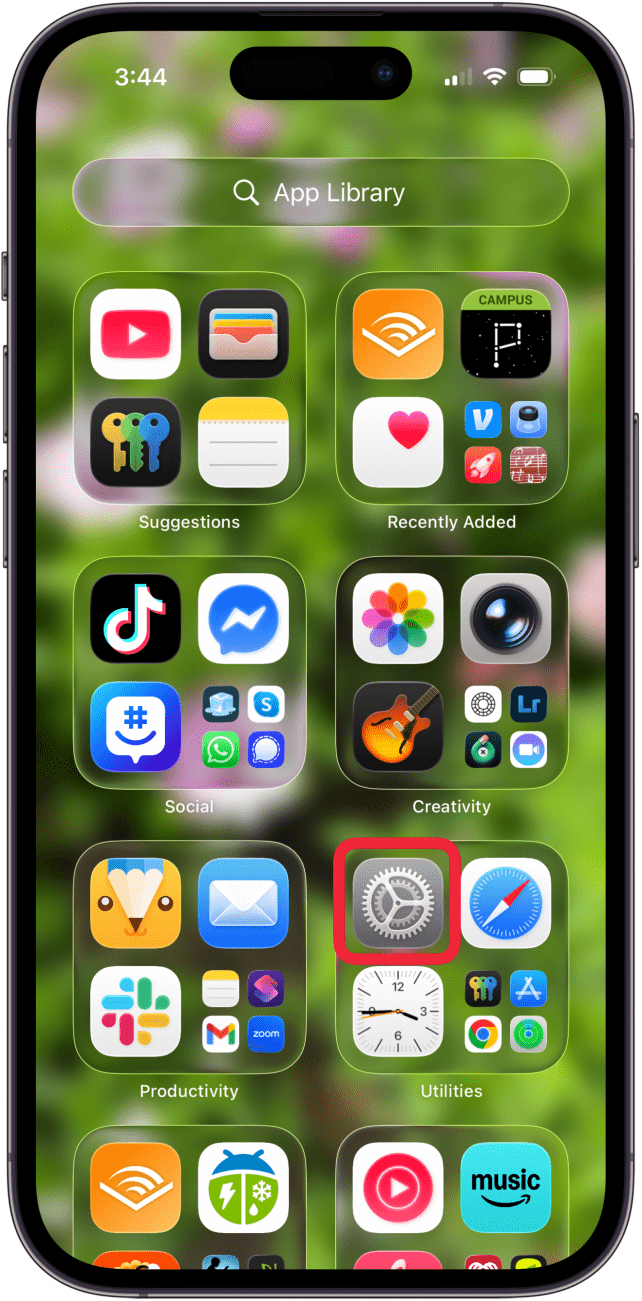
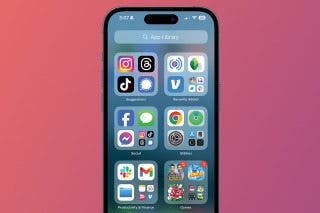
How to Put App Back on Home Screen Using the App Library
Here's how to add Safari to your Home Screen by searching the App Library:
- To access the App Library, swipe left until you've gone one screen past your last Home Screen page.

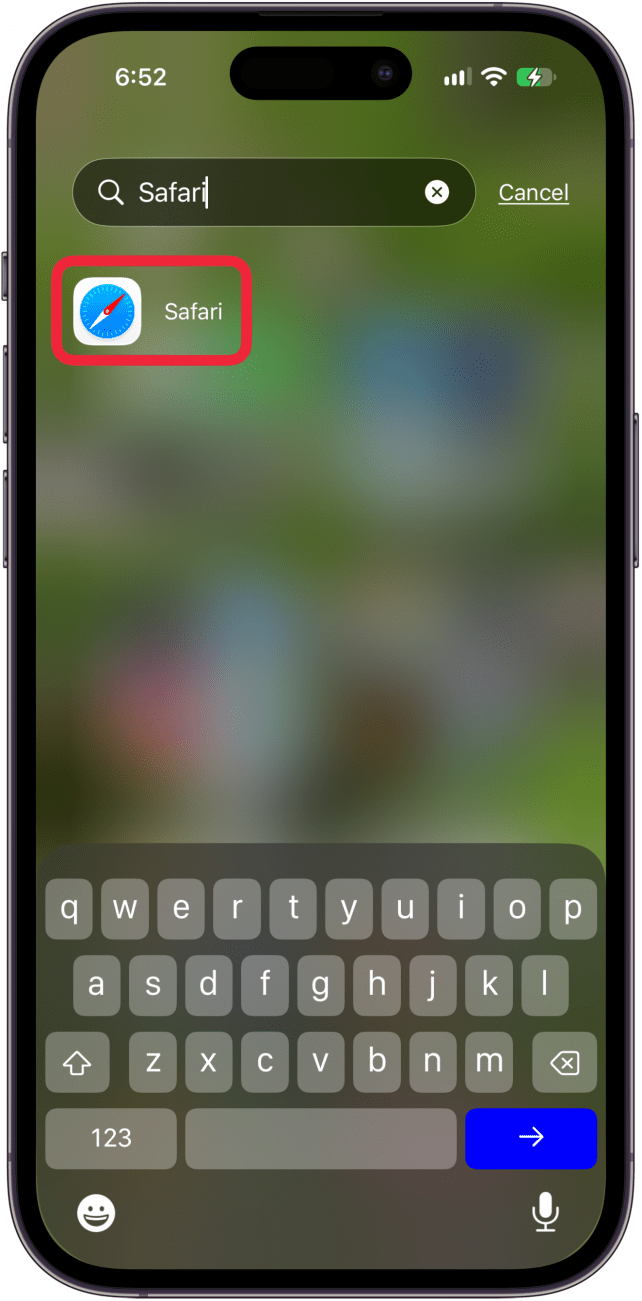
- Tap the Search bar and type in Safari.
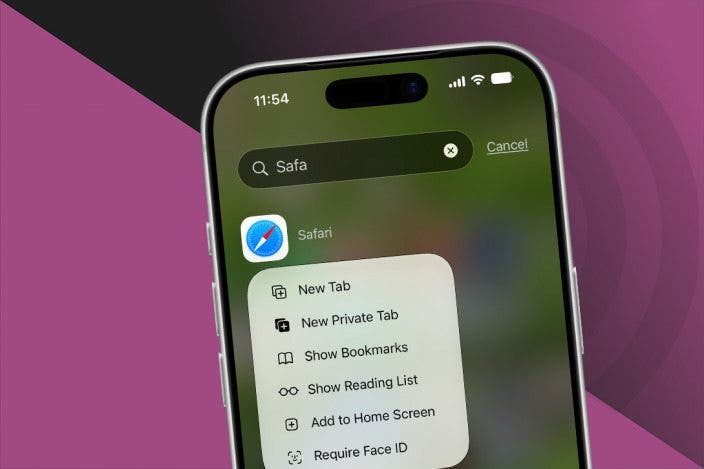
- Touch and hold the app, then tap Add to Home Screen.

Your Safari app should now be added back to your Home Screen! If you're not familiar with the App Library, I recommend checking out this article on how to use the App Library. It's a great way to help you stay organized.
How to Add Safari to Home Screen Using Siri Search
If you prefer to avoid searching your App Library, you can also find the hidden app by using Siri Search. Here's how to add Safari to your iPhone Home Screen:
- From your Home Screen, swipe down from the center of your screen or tap Search at the bottom of your screen to access the Siri Search feature.

- Type Safari, and it should come up right away.

- Touch and hold the Safari icon, then tap Add to Home Screen.

- If you want to add the app to your Dock, press and hold the Safari app and drag it to the bottom of your screen. Tap the screen to exit Wiggle mode when the app is where you want it.
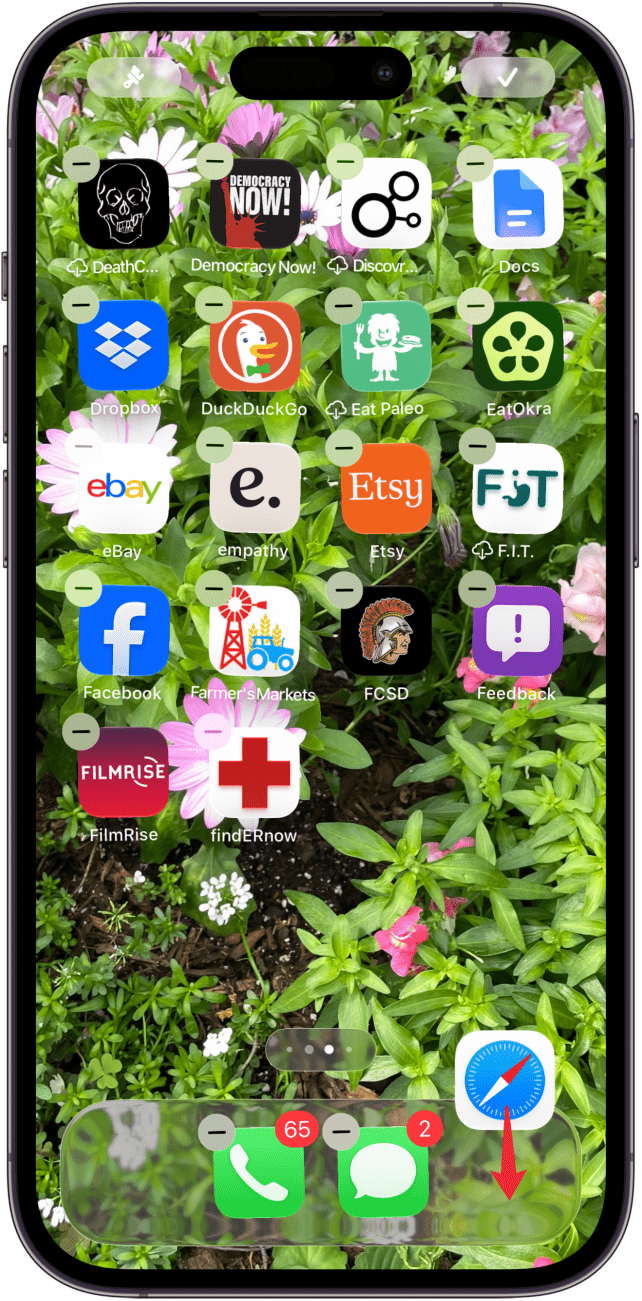
Adding the Safari app to your dock is optional, but it does make it more convenient to access Safari. Your dock displays up to four apps at any given time, and appears at the bottom of each Home Screen.
Reset Your Home Screen to Reinstall Safari
If you were not able to find or reinstall Safari using the steps above, this method will reset your iPhone’s Home Screen back to the factory version, which is how the Home Screen looks when setting your device up as new. Since Safari is one of the apps featured on the default Home Screen, this method will allow you to add Safari to your Home Screen.
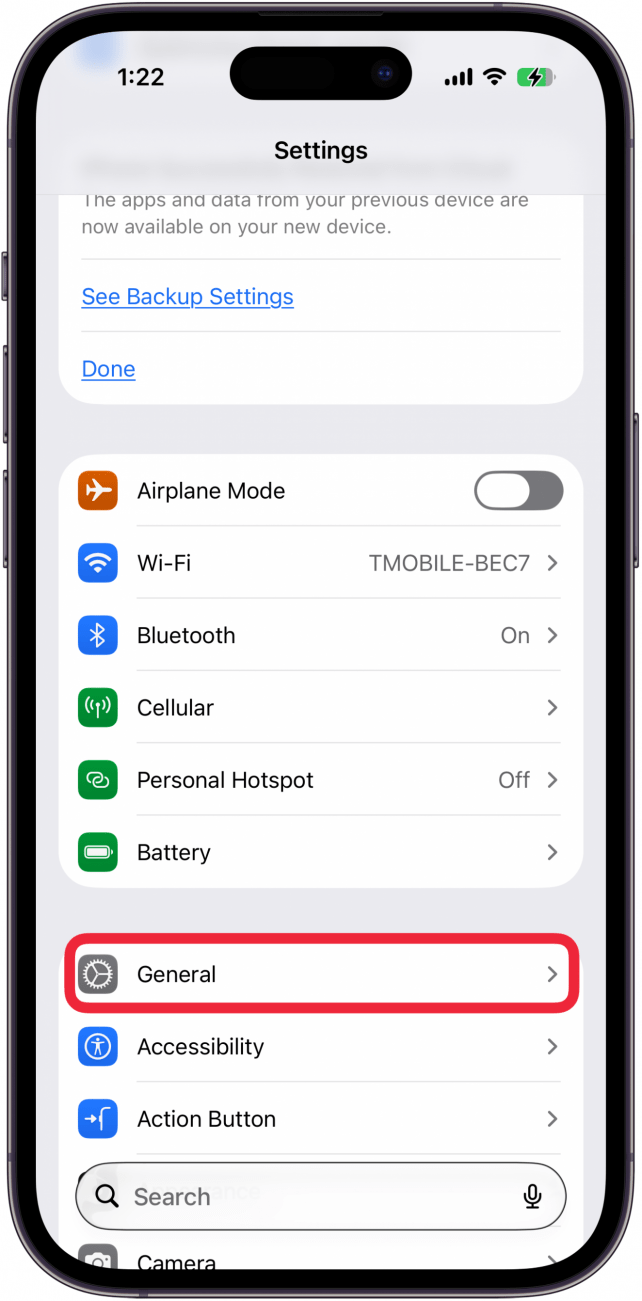
- Open the Settings app.
- Tap General.
- Tap Transfer or Reset iPhone.

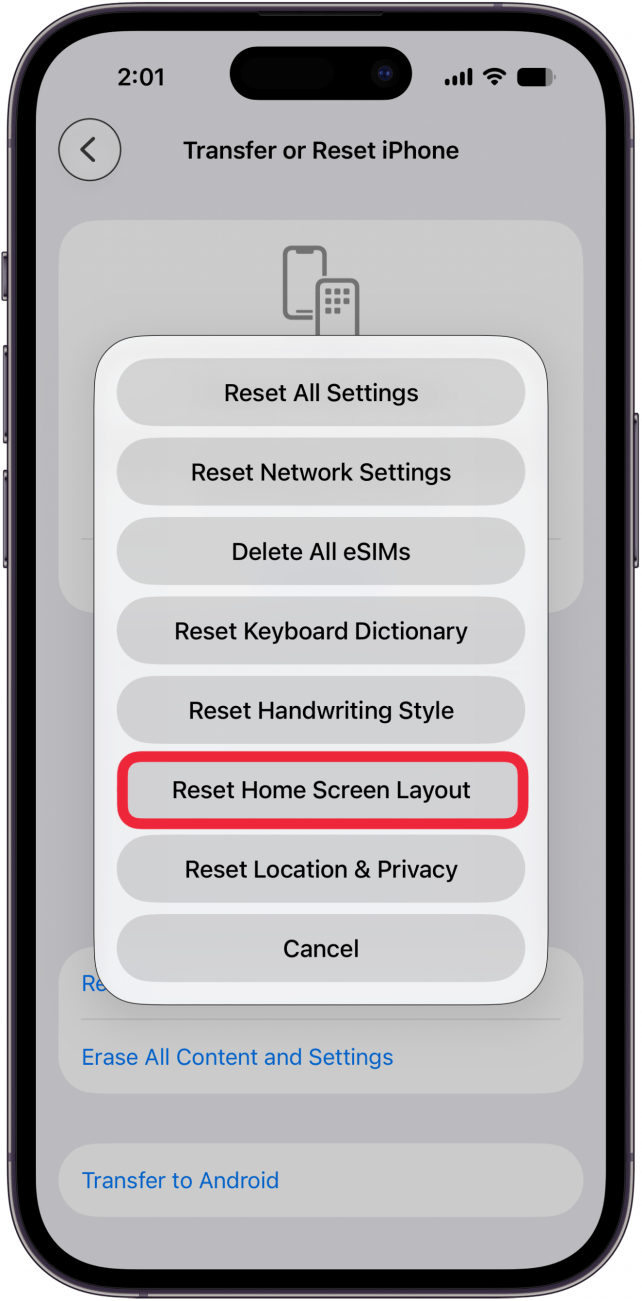
- Tap Reset.

- Tap Reset Home Screen Layout.
Hopefully, the solutions above worked, and you found adding Safari to your Home Screen to be a breeze! However, if the above solutions haven't worked, there might be a deeper issue with your device. In this case, I recommend contacting Apple Support or visiting the nearest Apple store for further assistance. If you're interested, I also recommend learning how to find your lost iPhone, even if the battery has died.
I hope this troubleshooting article helped you get Safari back on your iPhone. Consider subscribing to our Tip of the Day for more tutorials.
FAQ
- How do I add Safari to my iPhone Home Screen? If your Safari app was removed from the Home Screen, you can just add the Safari icon back to your Home Screen by using the App Library.
- Why is the Safari icon missing on my iPhone? If your Safari icon has disappeared, you can add it to your Home Screen again via the App Library, or reset your Home Screen layout to find the app.
- Why can't I get Safari on my iPhone? Sometimes people are unable to download apps and run into many other glitches and issues if their iOS is out of date. It's important for security reasons and for the overall smooth running of your device to keep it as up-to-date as possible. Check to see if your iPhone needs to be updated.

Rhett Intriago
Rhett Intriago is a Feature Writer at iPhone Life, offering his expertise in all things iPhone, Apple Watch, and AirPods. He enjoys writing on topics related to maintaining privacy in a digital world, as well as iPhone security. He’s been a tech enthusiast all his life, with experiences ranging from jailbreaking his iPhone to building his own gaming PC.
Despite his disdain for the beach, Rhett is based in Florida. In his free time, he enjoys playing the latest games, spoiling his cats, or discovering new places with his wife, Kyla.
 Rhett Intriago
 Amy Spitzfaden Both
 Rachel Needell



 Olena Kagui
 Leanne Hays