How to Reset Network Settings on iPhone

Conner is a feature writer and contributor to iPhone Life, as well as an author, poet, and content creator.
Learn More Conner is a feature writer and contributor to iPhone Life, as well as an author, poet, and content creator.
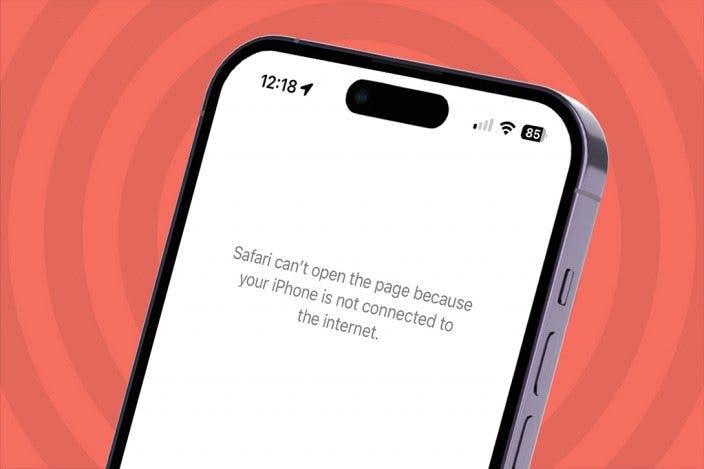
Learn MoreDid you know that you can reset your network settings on iPhone to troubleshoot internet connectivity issues? If you're having connectivity issues, a simple reset of the network settings on your iPhone should resolve the issue. In this tip, we'll show you how to reset network settings on the iPhone.
Why You'll Love This Tip
- Quickly solve internet connection problems.
- Troubleshoot other common iPhone issues.
How to Reset Network Settings on iPhone
System Requirements
This tip was performed on an iPhone 15 Pro running iOS 26.2.1. Find out how to update to the latest version of iOS.
Are you having issues with the internet connecting to your iPhone? If you know your Wi-Fi router is working, your Wi-Fi is turned on, and you’ve already restarted your device but it still won’t connect, there’s one thing left to do: reset network settings on your iPhone. What does resetting network settings do? Resetting your network settings acts like "turning it off an on again" for your internet. It removes your Wi-Fi connection and means you’ll have to enter Wi-Fi passwords again to gain access. Make sure you write down any Wi-Fi passwords you need to remember before doing this. It will also reset your cellular settings. To learn more about iPhone settings, check out our Tip of the Day newsletter. Now, here's how to reset network settings on the iPhone:
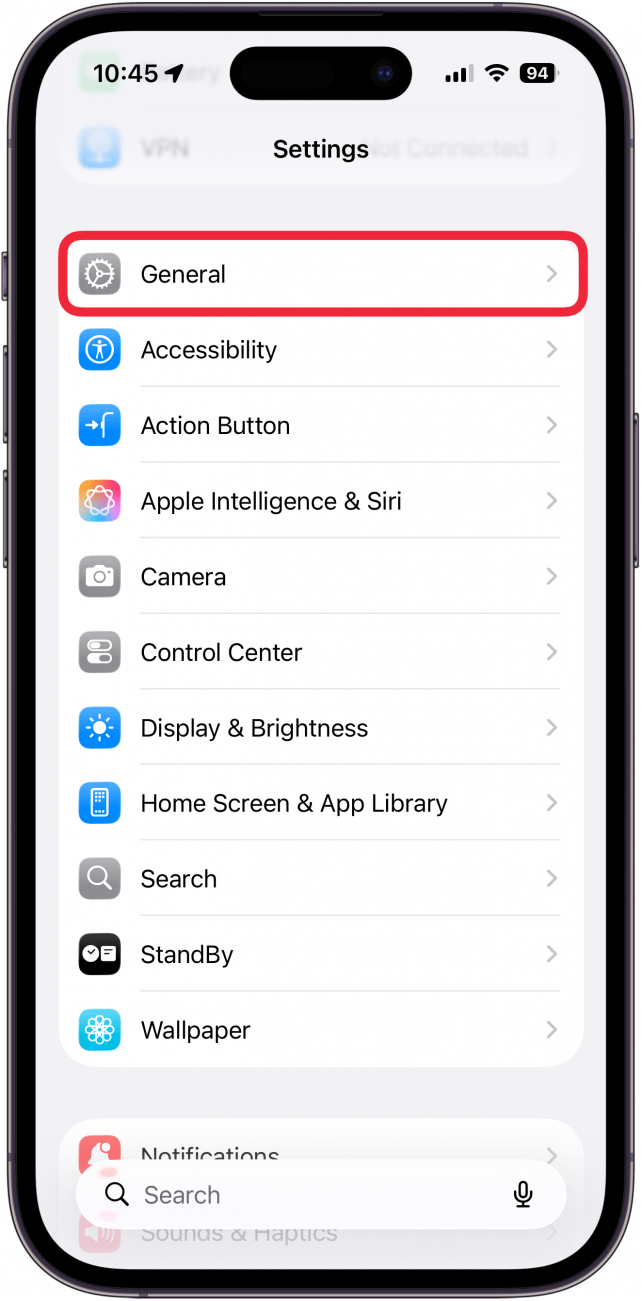
- Open the Settings app, and tap General.
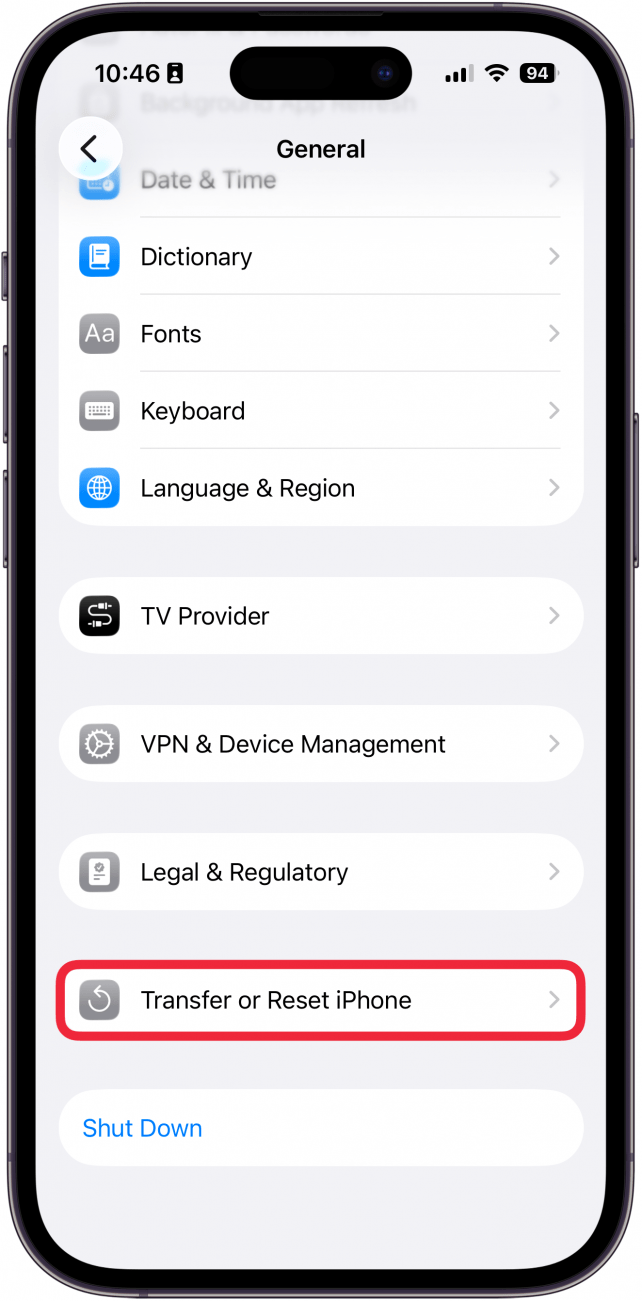
- Scroll all the way down and tap Transfer or Reset iPhone.
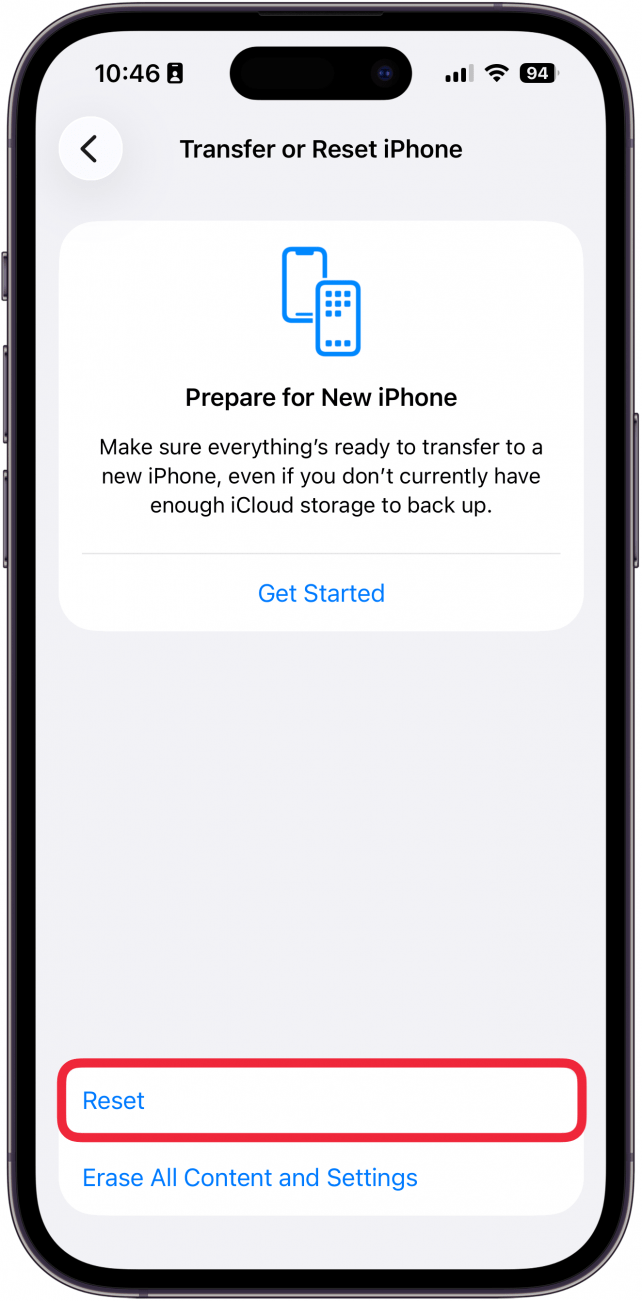
- Tap Reset.
- Tap Reset Network Settings.
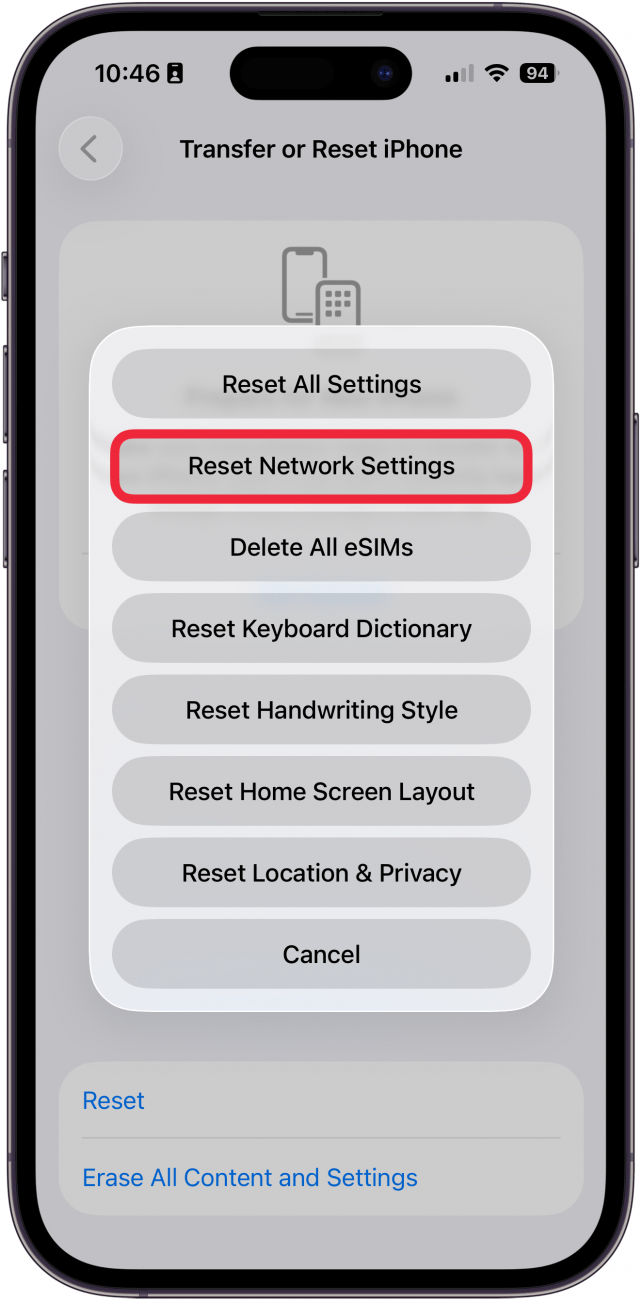
- Enter your iPhone’s passcode.
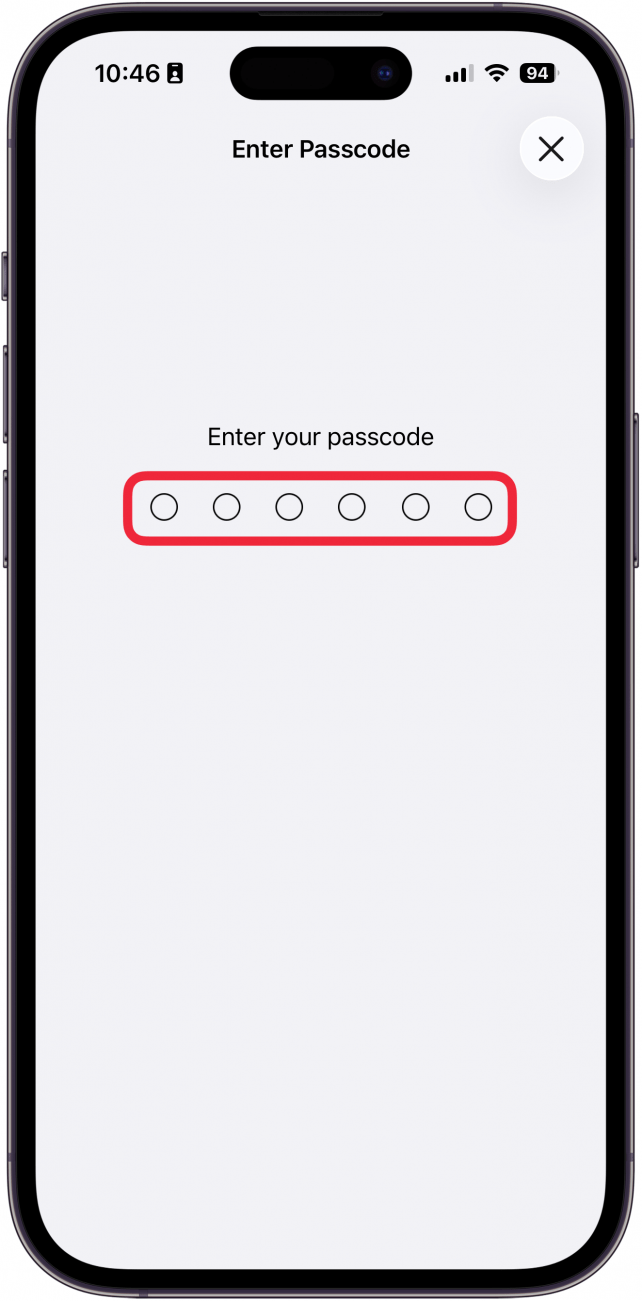
Now, you have reset the network settings on your iPhone. This simple reset should solve 99 percent of the network connectivity problems you’re having.
More On: Troubleshooting Network Issues

Every day, we send useful tips with screenshots and step-by-step instructions to over 600,000 subscribers for free. You'll be surprised what your Apple devices can really do.

Conner Carey
Conner Carey's writing can be found at conpoet.com. She is currently writing a book, creating lots of content, and writing poetry via @conpoet on Instagram. She lives in an RV full-time with her mom, Jan and dog, Jodi as they slow-travel around the country.

 Rhett Intriago
 Rachel Needell
 Amy Spitzfaden Both

 Leanne Hays


 Ashleigh Page

 August Garry



 Olena Kagui