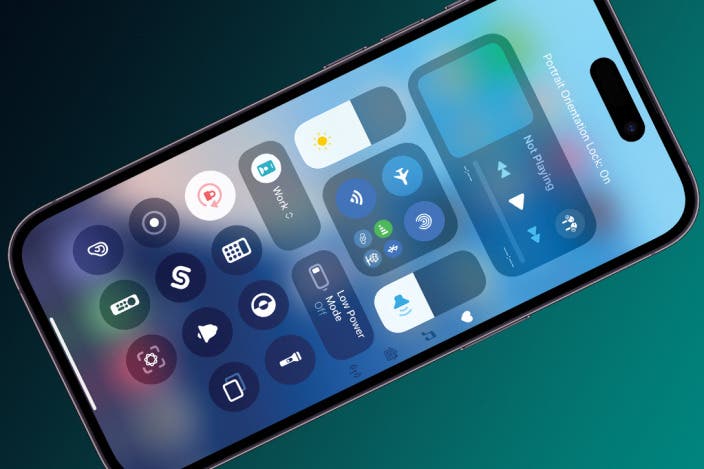
How to Lock Portrait Orientation on iPhone & iPad

With two decades of writing and editing experience, Sarah has written hundreds of how-to articles, founded the Daily Tip newsletter, and now oversees iPhone Life’s online content.
Learn More With two decades of writing and editing experience, Sarah has written hundreds of how-to articles, founded the Daily Tip newsletter, and now oversees iPhone Life’s online content.
Learn MoreIt's very convenient to rotate your screen automatically between portrait and landscape, but sometimes your screen will flip orientations when you didn't want it to. Luckily, both the iPad and iPhone's orientation lock buttons are easy to access via the Control Panel. With the orientation lock enabled, you can keep your screen from adjusting regardless of whether the device is rotated vertically or horizontally. Let's go over how to adjust your iPad's and iPhone's auto-rotate settings!
Why You'll Love This Tip
- Learn how to quickly access the Portrait Orientation lock to enable or disable automatic screen rotation.
- Lock your screen's orientation to horizontal or vertical so you can read or watch videos on your devices in any position.
How to Toggle the iPhone’s Screen Rotation Lock
System Requirements
This tip was performed on an iPhone 15 Pro running iOS 26.1. Find out how to update to the latest version of iOS.
What is orientation lock on iPhone? The Portrait Orientation Lock button is located in the Control Center. When it is on, your iPhone or iPad won’t automatically rotate. If you get annoyed when your iPhone or iPad screen flips and flops around every time you shift positions, this is the tip for you. If you like tips like this about how to use your Apple devices, be sure to sign up for our free Tip of the Day! So, where is the portrait orientation lock on your iPhone? Here's how to toggle your iPhone's rotation lock:
Note
Your Control Center will likely look different from the one in the screenshots below. I have customized the Control Center and rearranged the icons.
- From the Home Screen of your iPhone, swipe down from the top right to access the Control Panel.

- The Portrait Orientation Lock is the button with the round arrow with the lock inside. It will be gray when disabled. This means your iPhone will automatically rotate based on the way you are holding it.
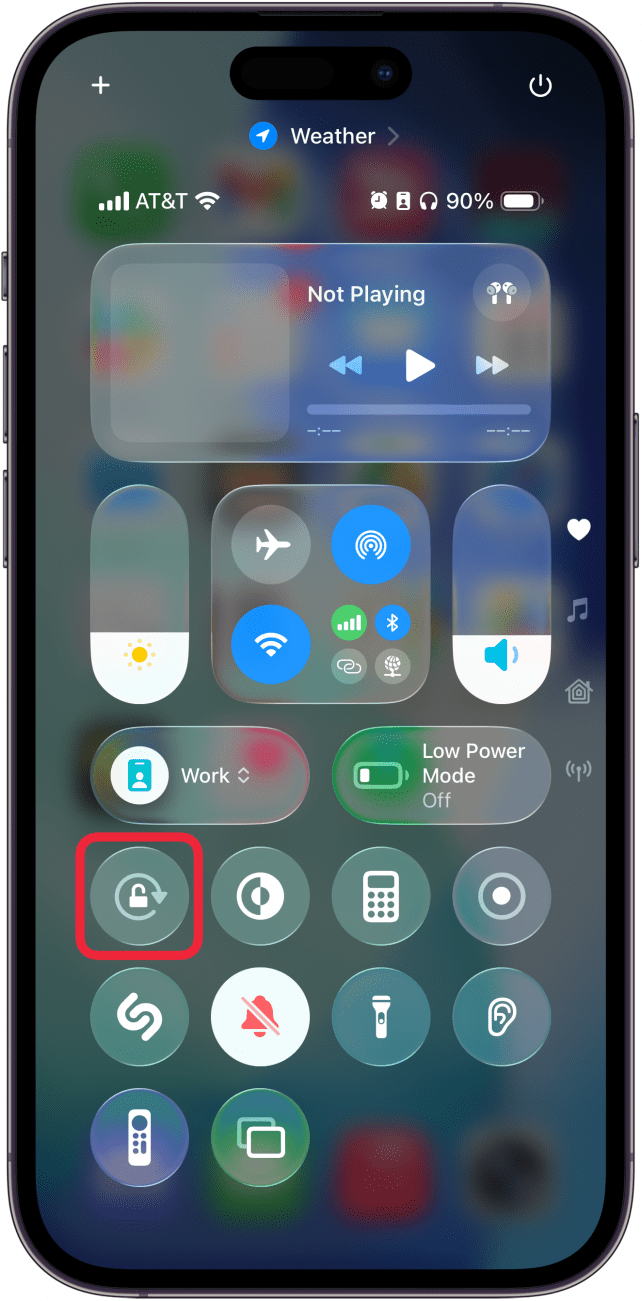
- To lock your screen orientation, tap the Portrait Orientation Lock. It will be white when enabled.
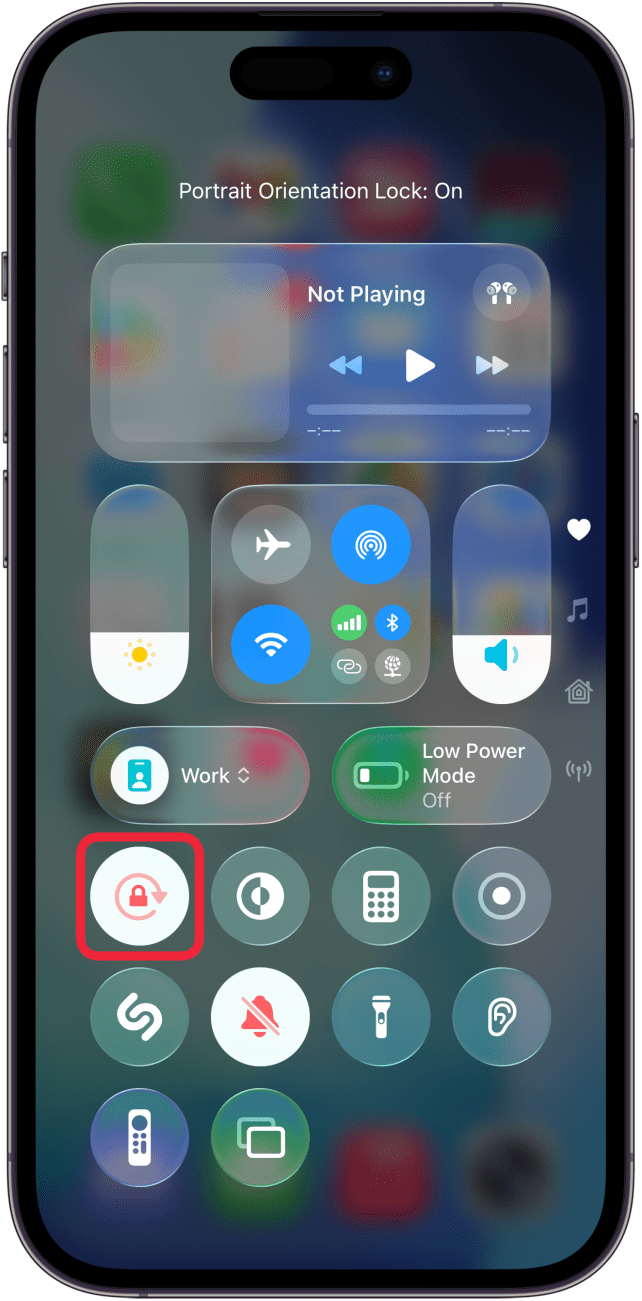
That's how to lock orientation on iPhone. With your iPhone rotation lock enabled, your screen will no longer rotate when you turn your phone sideways unless you use an app that only has landscape mode. Using the iPhone orientation lock will prevent apps that offer both modes from auto-rotating. However, apps that are only available in landscape mode will not switch to portrait mode.
But what does the rotation lock button look like on my iPad? Well, the steps are essentially the same on the iPad. Just open your iPad's Control Center and look for the circular arrow icon.
If you find your iPhone stuck in landscape mode, try turning the lock on and off until it rotates again. If you keep experiencing problems, restarting your iPhone should help.
More On: Control Center

Every day, we send useful tips with screenshots and step-by-step instructions to over 600,000 subscribers for free. You'll be surprised what your Apple devices can really do.

Sarah Kingsbury
As the Editorial Director at iPhone Life, Sarah Kingsbury manages the online editorial team and oversees all website content. She is a long-time Apple enthusiast who never goes anywhere without her Apple Watch and owns way too many HomePods. Since joining iPhone Life in 2013, Sarah has done everything from writing hundreds of how-to articles to founding the Daily Tip newsletter. She even co-hosted the early episodes of the iPhone Life Podcast. When not at work, Sarah can be found hiking in the mountains and canyons around Las Vegas, where she lives with her partner and dogs.
Related Articles
 Cullen Thomas
 Rachel Needell
 Rhett Intriago
 Olena Kagui
 Ashleigh Page
Your iOS 18 Quick Start Guide: 10 Tips to Get You Going
 Amy Spitzfaden Both
Quickly Silence Notifications with Wrist Flick (watchOS 26)

 Leanne Hays