How to Turn On Flashlight On iPhone with Apple Watch

In the last 10 years, Olena has been published in dozens of publications internationally and written hundreds of how-to articles and complex guides about Apple products, software, and apps.
Learn More In the last 10 years, Olena has been published in dozens of publications internationally and written hundreds of how-to articles and complex guides about Apple products, software, and apps.
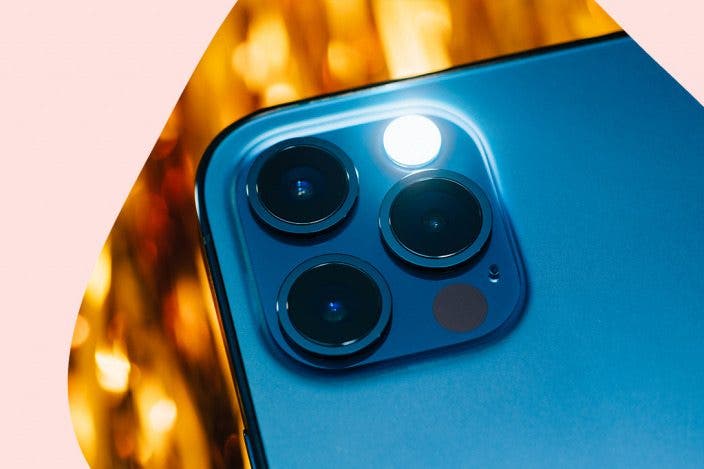
Learn MoreThe iPhone flashlight is a useful tool that can replace an actual flashlight with a device you always have in your pocket, it can also be used to enhance your photography, and it can help you find a misplaced phone under the sofa. I'll teach you how to turn on your flashlight on your iPhone using your Apple Watch!
Why You'll Love This Tip
- Find your phone in the dark by turning on the flashlight from your watch.
- Turn on the flashlight on your phone even if youriPhone screen is glitching or not working.
How to Turn On Flashlight On iPhone with Apple Watch
System Requirements
This tip was performed on an iPhone 17 Pro Max running iOS 26.5. Find out how to update to the latest version of iOS.
There's many reasons you might want to turn on your phone's flashlight using your watch. Sometimes it can even be a fun party trick! Don't forget to check out our free Tip of the Day for more hidden tricks. Here's how to on iPhone flashlight using your watch:
- Open the Control Center on your Apple Watch by pressing the side button.

- Locate the ping iPhone icon and long-press it until your flashes and pings.
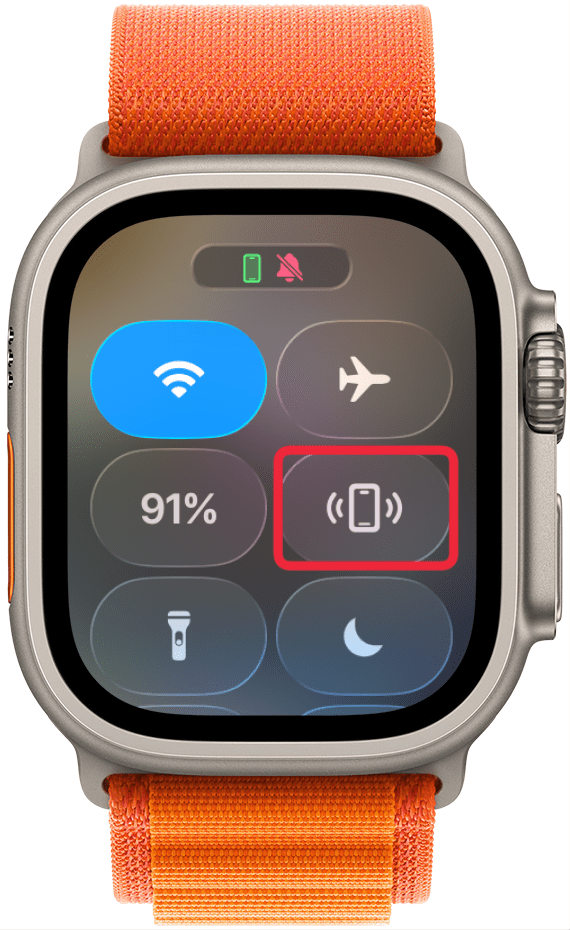
- Your phone will only flash a few times but your watch will open up FindMy to help you locate your watch.
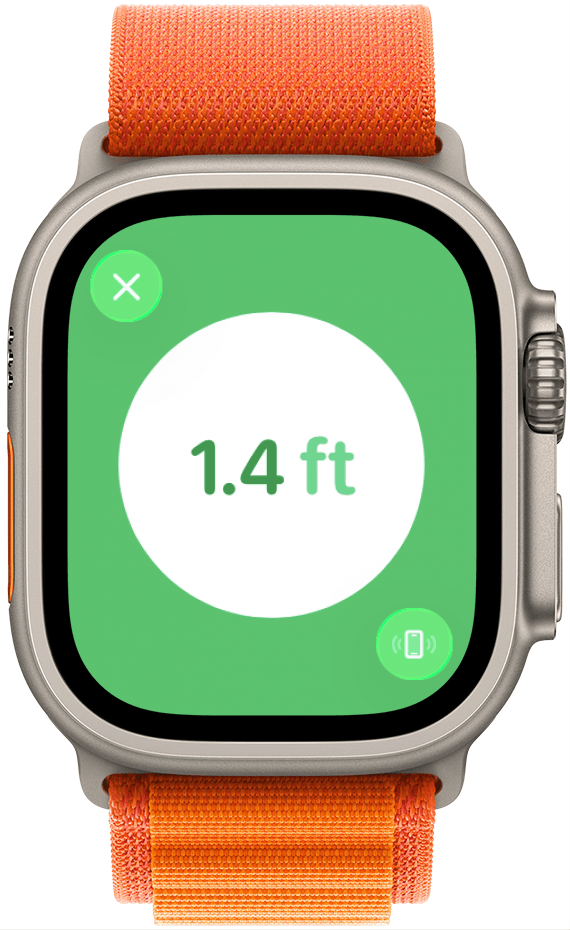
That's it! The one caveat is that both devices need to have Bluetooth enabled and need to be within Bluetooth range (approximately 30 feet) of each other. If Bluetooth on either device is off, your iPhone is off, or the devices are too far apart, the ping iPhone button will be greyed out.
Now you know how to activate your torch on your iPhone, as the Brits and Australians would say. Whether you call it a flashlight or a torch, you now know how to make it flash using just your Apple Watch!
More On: Flashlight App
Top image credit: Hadrian / Shutterstock.com

Every day, we send useful tips with screenshots and step-by-step instructions to over 600,000 subscribers for free. You'll be surprised what your Apple devices can really do.

Olena Kagui
Olena Kagui is a Feature Writer at iPhone Life. In the last 10 years, she has been published in dozens of publications internationally and won an excellence award. Since joining iPhone Life in 2020, she has written how-to articles as well as complex guides about Apple products, software, and apps. Olena grew up using Macs and exploring all the latest tech. Her Maui home is the epitome of an Apple ecosystem, full of compatible smart gear to boot. Olena’s favorite device is the Apple Watch Ultra because it can survive all her adventures and travels, and even her furbabies.
 Leanne Hays
 Rhett Intriago
 Susan Misuraca
 Olena Kagui
 Rachel Needell

 Sarah Kingsbury

 Nicholas Naioti
 Amy Spitzfaden Both