How to Turn Silent Mode On & Off on iPhone

Hallei has a background in creative and professional writing, with a focus on clear communication and creative thinking.
Learn More Hallei has a background in creative and professional writing, with a focus on clear communication and creative thinking.
Learn MoreIt's annoying to be distracted by your phone's alerts and incoming calls. You can enable Silent mode on your iPhone if you need some peace and quiet, but don't want to enable a Focus mode like Do Not Disturb. Here's how to put your iPhone's ringer on silent while the baby is napping, you're watching a show, or if you just find the sound of a phone ringing unpleasant.
Why You'll Love This Tip
- Use iPhone Silent mode to silence calls and other notifications without activating a Focus.
- Learn how to turn off sound to notification sounds if they bother you with iPhone Silent mode.
How to Turn On Silent Mode on iPhone
System Requirements
This tip was performed on an iPhone 15 Pro running iOS 27. Find out how to update to the latest version of iOS.
On older iPhones, silencing the device was simple as flipping the Ring/Silent switch. But how do you silence an iPhone 17? Since the iPhone 15 Pro, the Ring/Silent switch has been replaced with the the Action Button, located just above the volume up button. The Action Button's default setting is to turn the ringer on and off, but it can be customized to perform other functions.
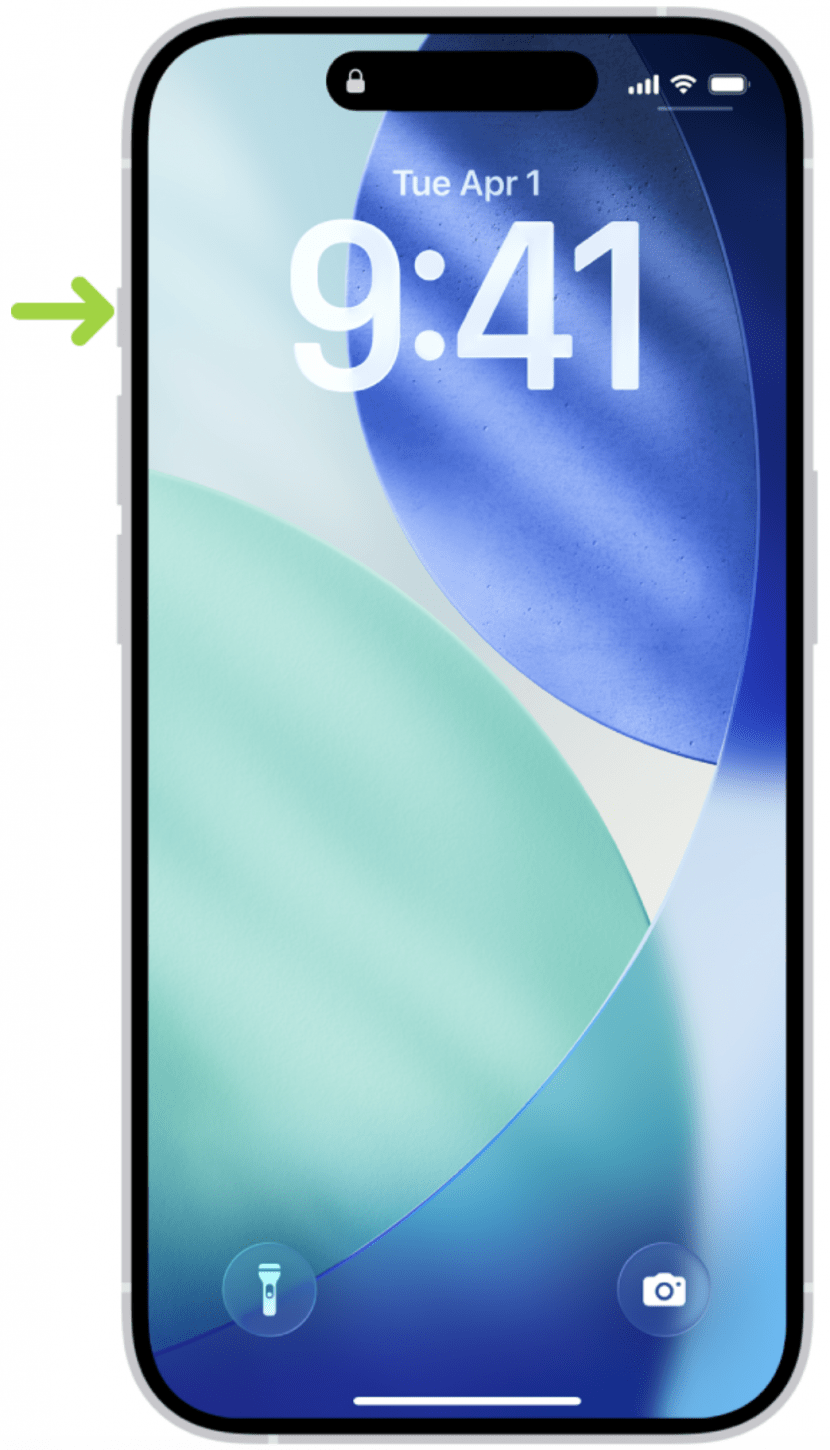
Image Credit: Apple.com
Older iPhones, on the other hand, have a Ring/Silent switch, which convenienly turns the ringer on and off. You can find the Ring/Silent Switch right above the volume up button on the side of your device, in the same place as the Action Button on newer iPhones:

Image Credit: Apple.com
Note
According to Apple, "clock alarms, audio apps such as Music, and many games play sounds through the built-in speaker, even when Silent mode is on. In some countries or regions, the sound effects for Camera, Voice Memos, and Emergency Alerts are played, even when the Ring/Silent switch or Action button is set to silent."
Now, here's how to silence an iPhone 17 (as well as other iPhones):
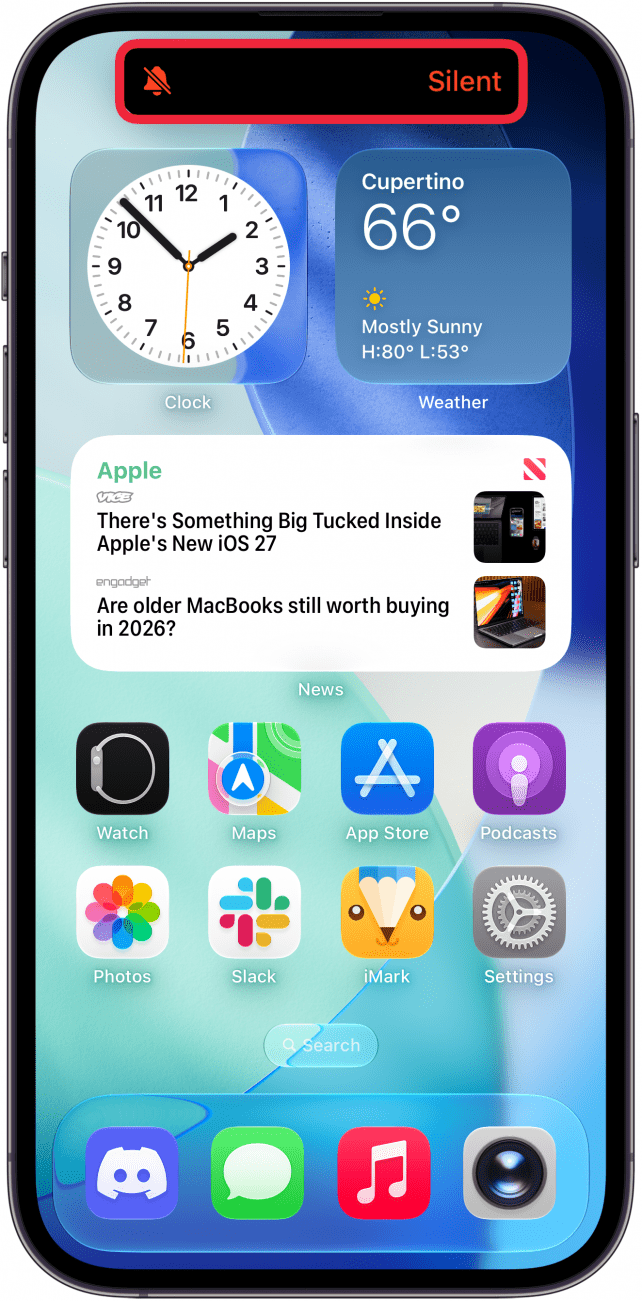
- Press and hold the Action Button on iPhone 15 Pro/Pro Max and later, or, on iPhone 14 and earlier, flip the Ring/Silent switch into the down position (an organe strip will be visible if you look closely). You'll see a notification on your iPhone that Silent mode has been activated. This means calls and alerts will be muted. Alarms set in the Clock app will not be muted.
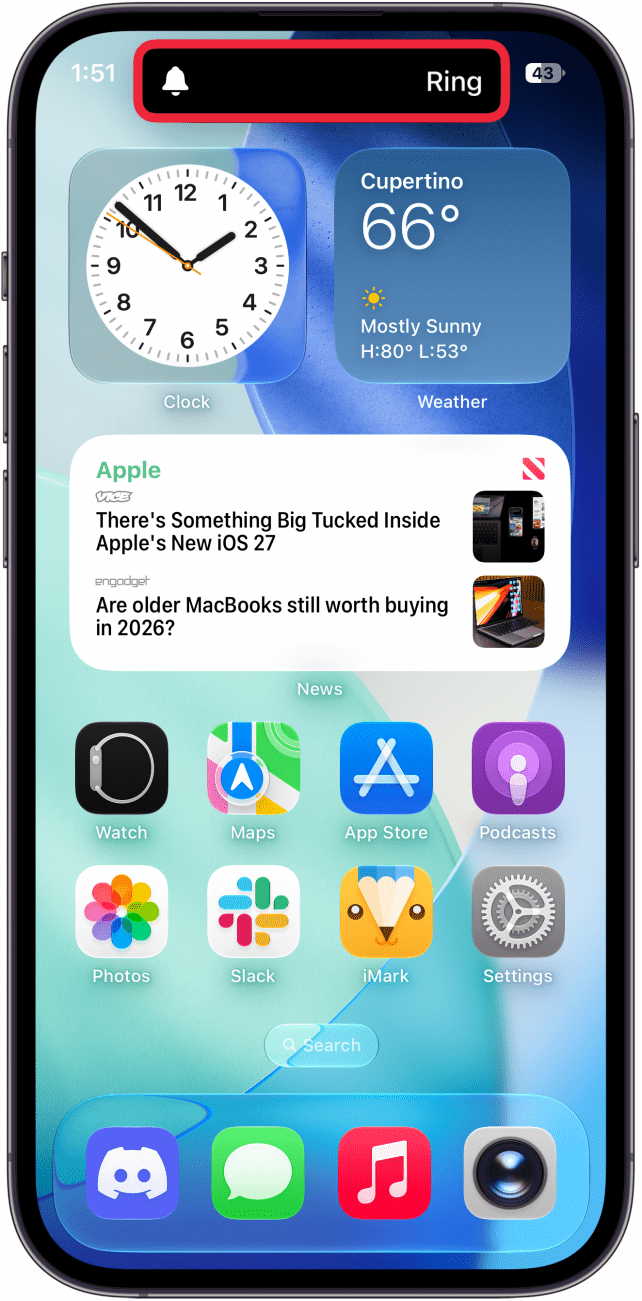
- If you're wondering how to turn off Silent mode on iPhone, simply press and hold the Action Button again on iPhone 15 Pro/Pro Max and later (or push the Ring/Silent switch forward so the orange no longer shows on older iPhones). You'll see a notification that your iPhone has been set to Ring.
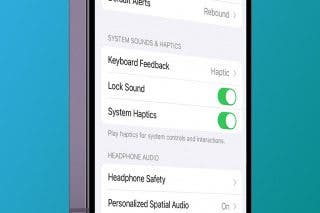
- You can still be alerted to calls and notifications if you have haptics set to play in Silent mode. But if you don't want your device to make even that much noise, you can also shut off the vibration feature by going into Settings and tapping Sounds & Haptics.
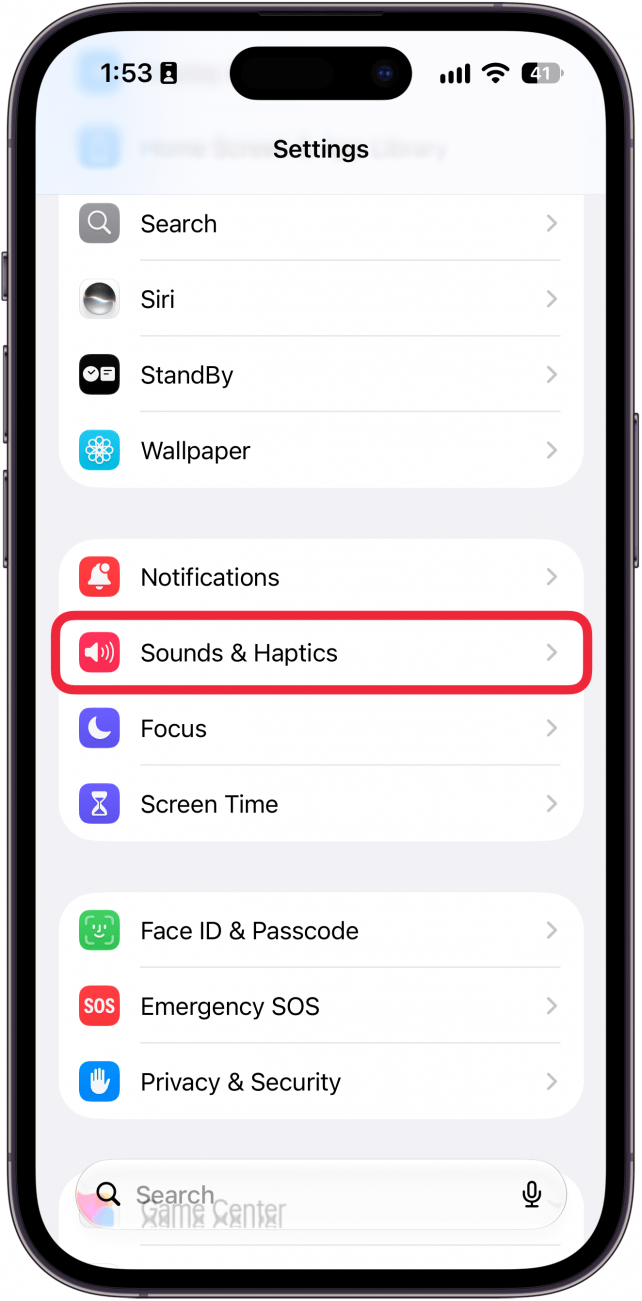
- Tap Haptics.
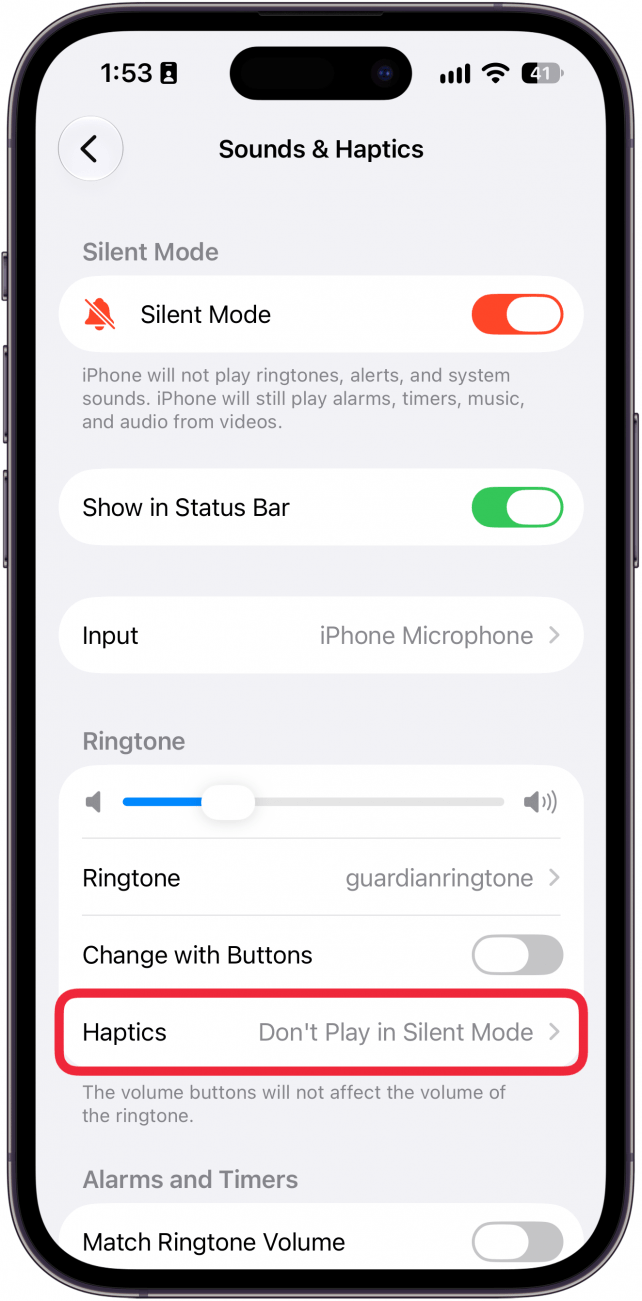
- Choose between Always Play, Play in Silent Mode, Don't Play in Silent Mode, or Never Play.
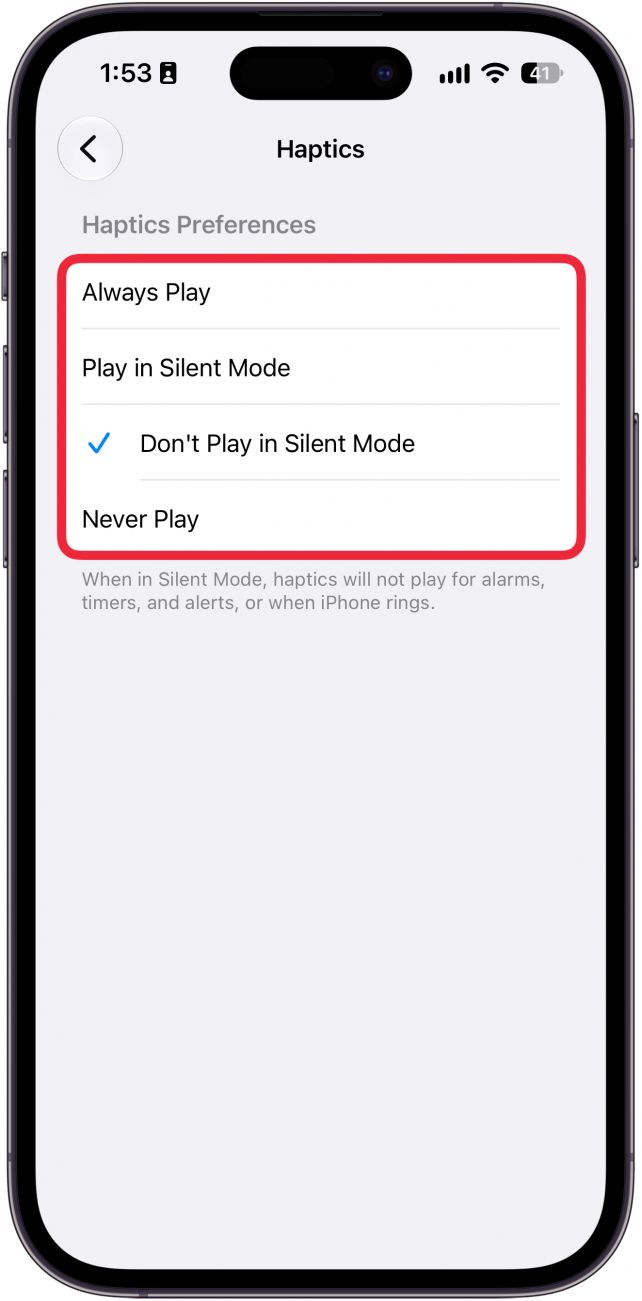
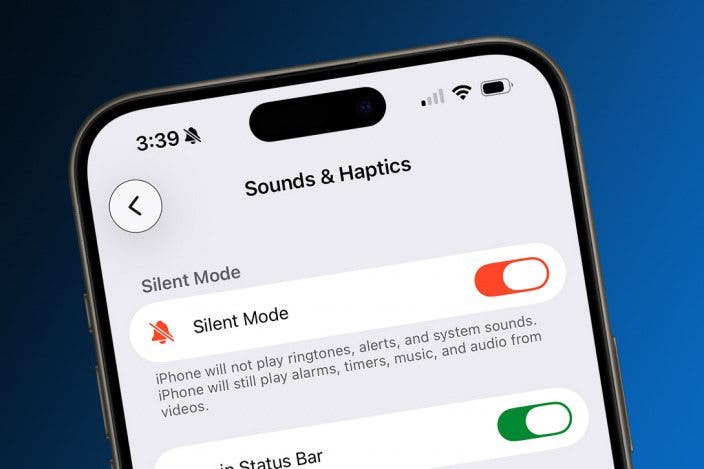
- If you have an iPhone 15 Pro or Pro Max or later, you will see some extra options at the top of the Sounds & Haptics menu. You can toggle Silent Mode on and off here.
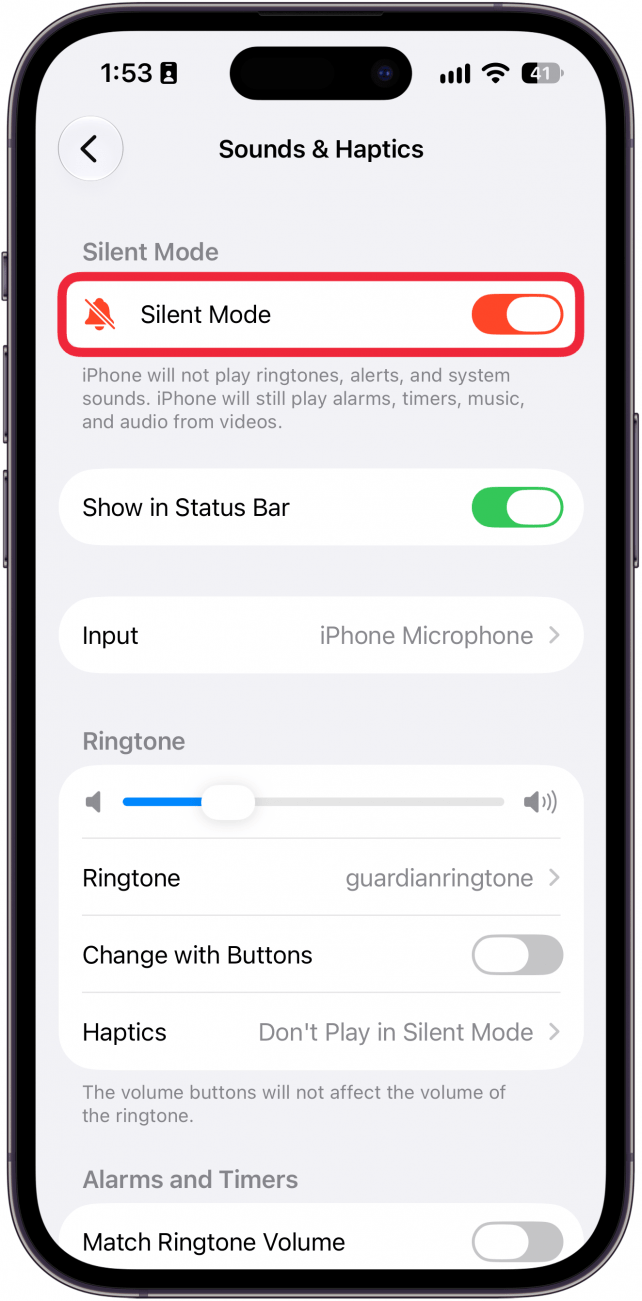
- Another option for silencing an iPhone with an Action Button is to add a silent mode toggle to the Control Center.
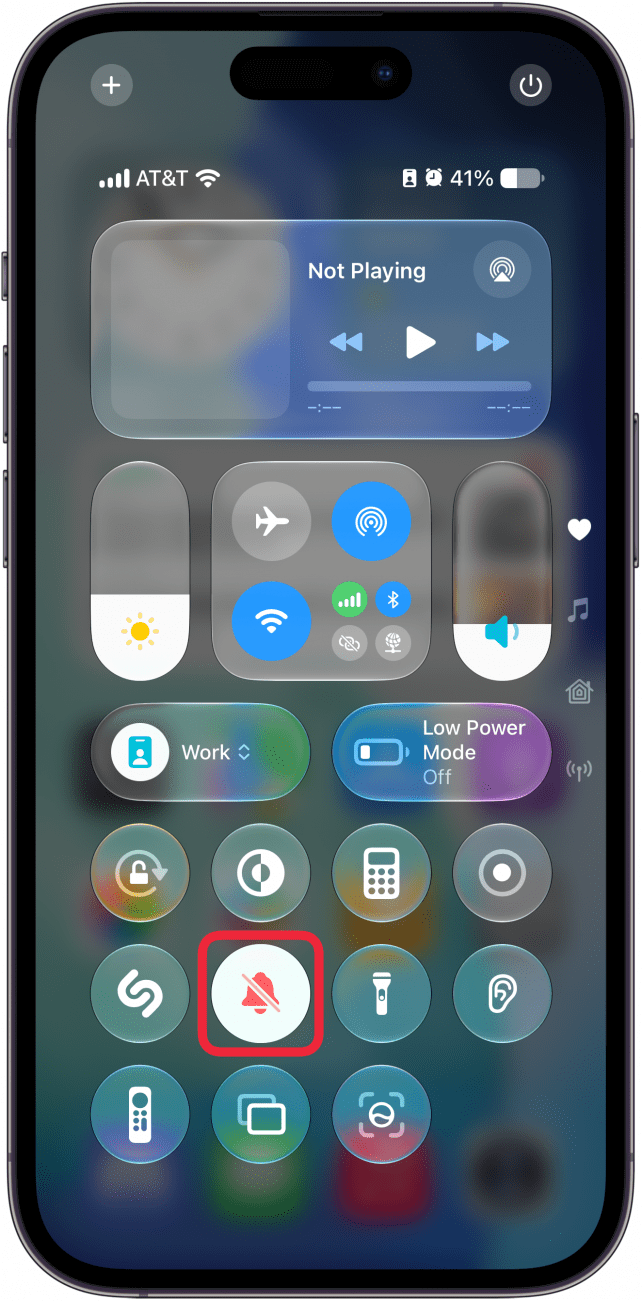
That's how to put your iPhone on silent, and how to turn Silent mode off on iPhone. Next, check out our free Tip of the Day for more great iPhone notification tutorials.

Every day, we send useful tips with screenshots and step-by-step instructions to over 600,000 subscribers for free. You'll be surprised what your Apple devices can really do.

Hallei Halter
Hallei is a 2018 graduate of Maharishi University of Management with a BFA in Creative & Professional Writing. She's currently working on a novel about people using witchcraft to clean their houses.
 Rachel Needell
 Rhett Intriago
 Leanne Hays
 Amy Spitzfaden Both


 Olena Kagui



 Susan Misuraca