Siri App: How to Use Your iPhone's New AI App

A lifelong tech enthusiast, with experiences ranging from jailbreaking his iPhone to building his own gaming PC, Rhett specializes in maintaining privacy in a digital world and iPhone security.
Learn More A lifelong tech enthusiast, with experiences ranging from jailbreaking his iPhone to building his own gaming PC, Rhett specializes in maintaining privacy in a digital world and iPhone security.
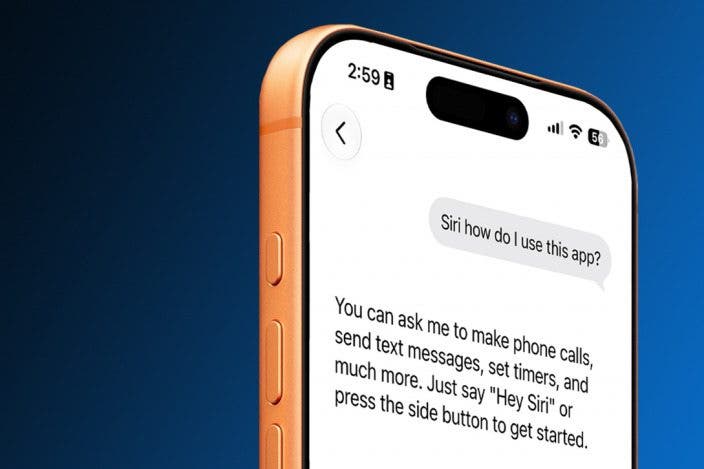
Learn MoreIf you have an iPhone 15 Pro or newer, after updating to iOS 27, you've probably noticed that Siri now has its own dedicated app. You can use Siri just like any other AI assistant now. Here's how to use the new Siri app.
Why You'll Love This Tip
- Type to Siri in situations where you cannot speak aloud.
- Keep track of your conversations with the new Siri AI.
How to Use the New Siri App
System Requirements
To use the new Siri app, you may need to sign up for the Siri AI waitlist. This tip was performed on an iPhone 15 Pro running iOS 27. Find out how to update to the latest version of iOS.
The Siri app on your iPhone keeps a record of any request or conversation you have with Siri, and you can go back and resume any conversation you want at any time. You can also use the app to type to Siri instead of speaking. To find out more ways to use Siri, be sure to sign up for our free Tip of the Day newsletter. Now, let's go over how to use the Siri AI app.
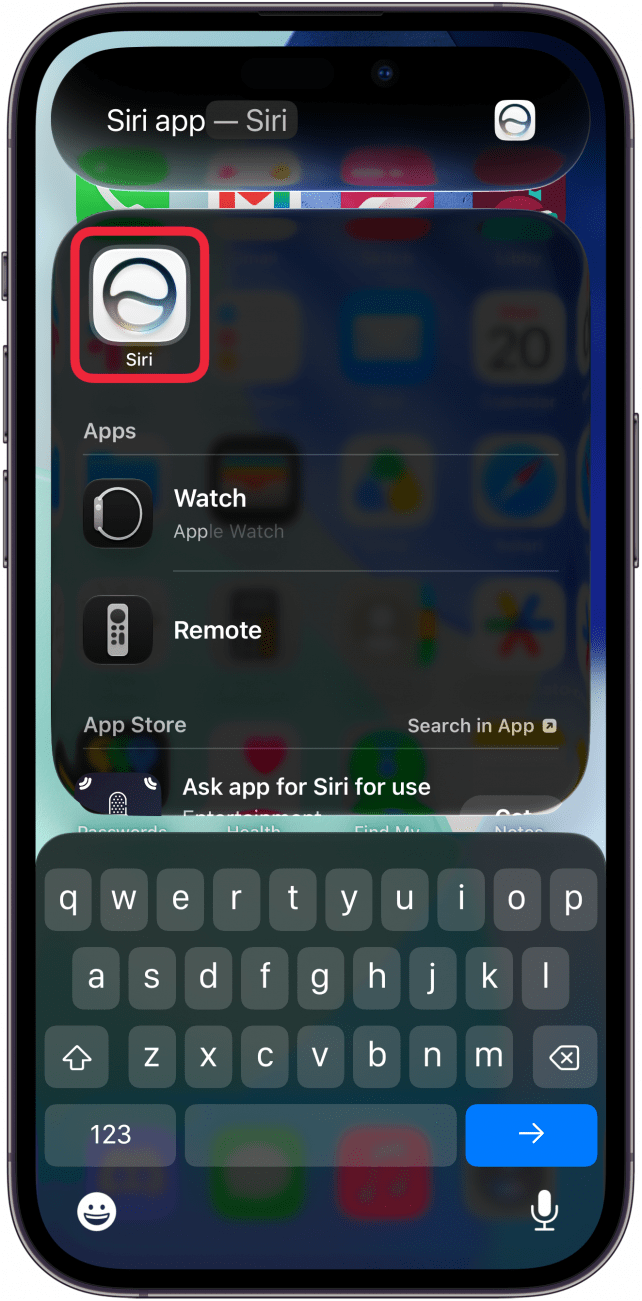
- Open the Siri app.
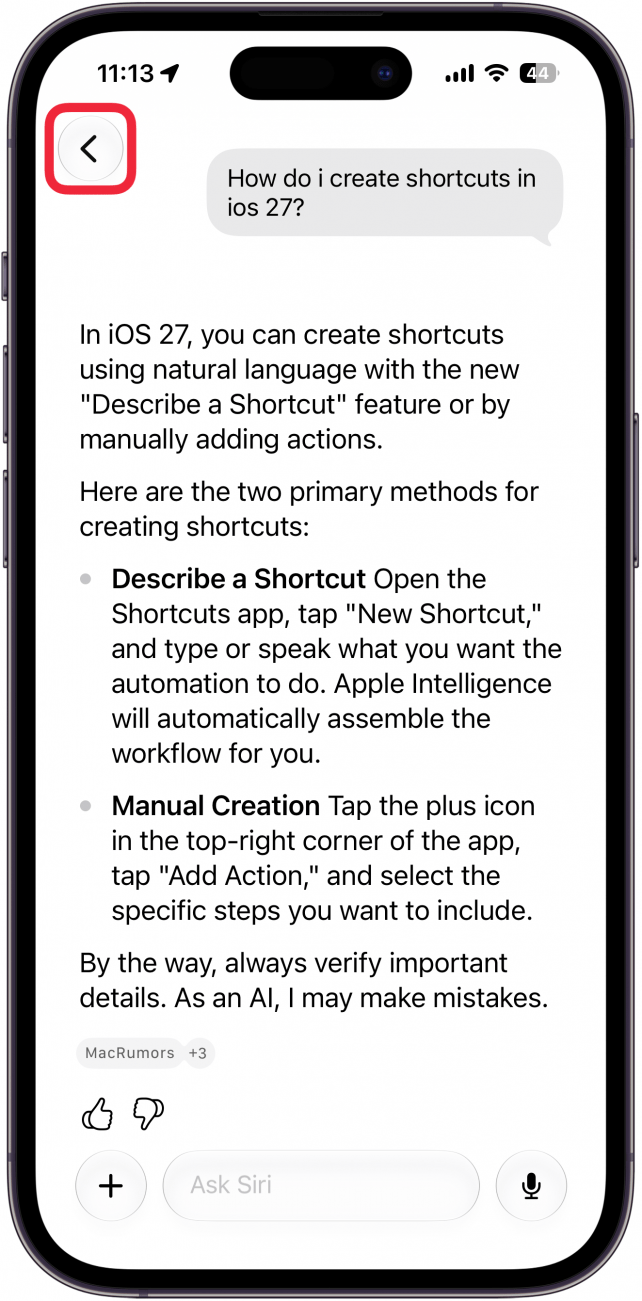
- If you're already in a conversation when you open the app, just tap the back button in the upper left corner. If not, proceed to step 3.
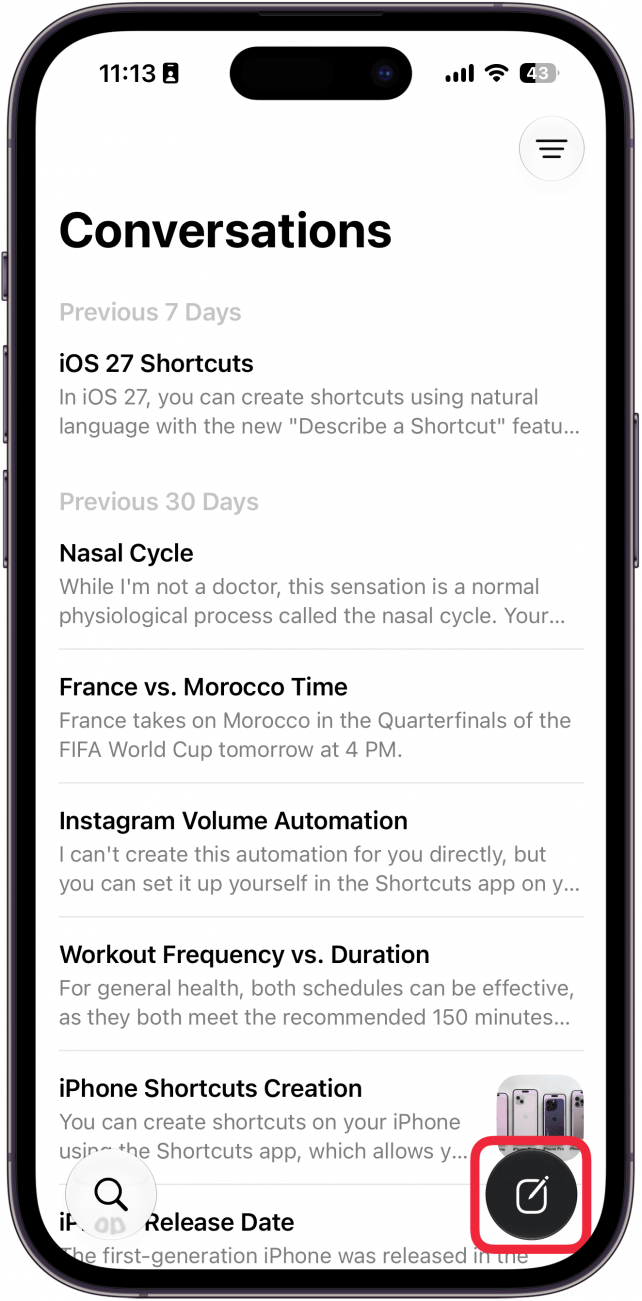
- On the main page of the Siri app, you can tap the new conversation icon (it looks like a sheet of paper with a pencil) to start a new conversation with Siri.
- You can tap the search icon to search your current conversations.
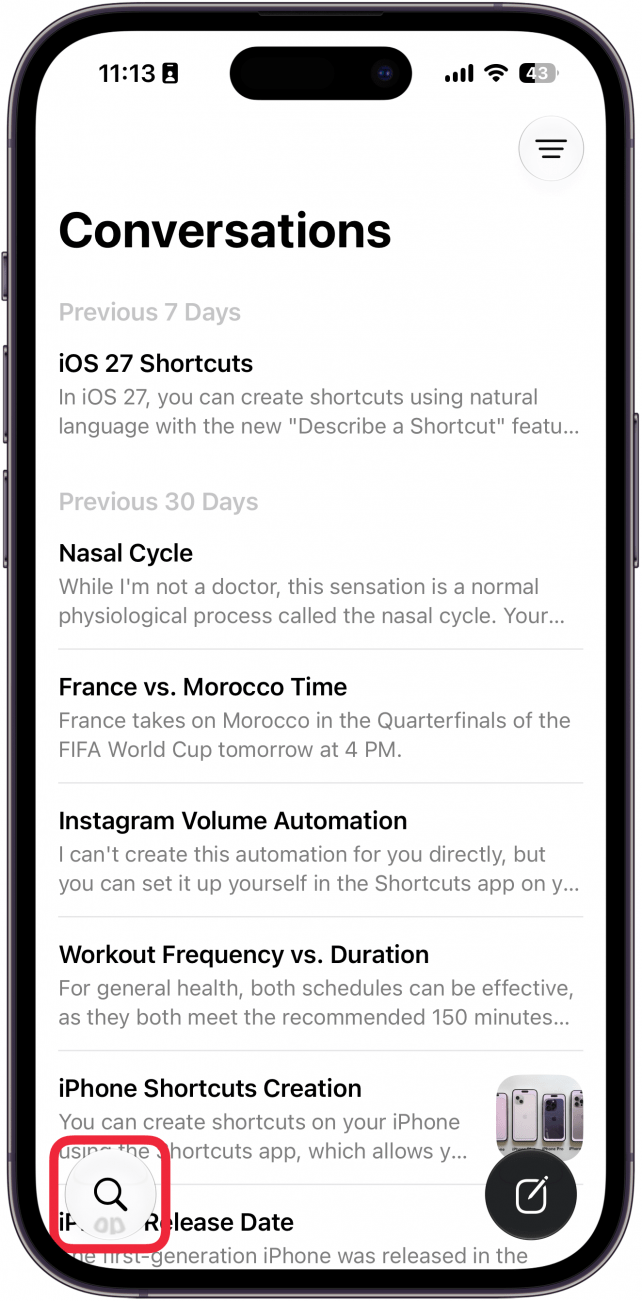
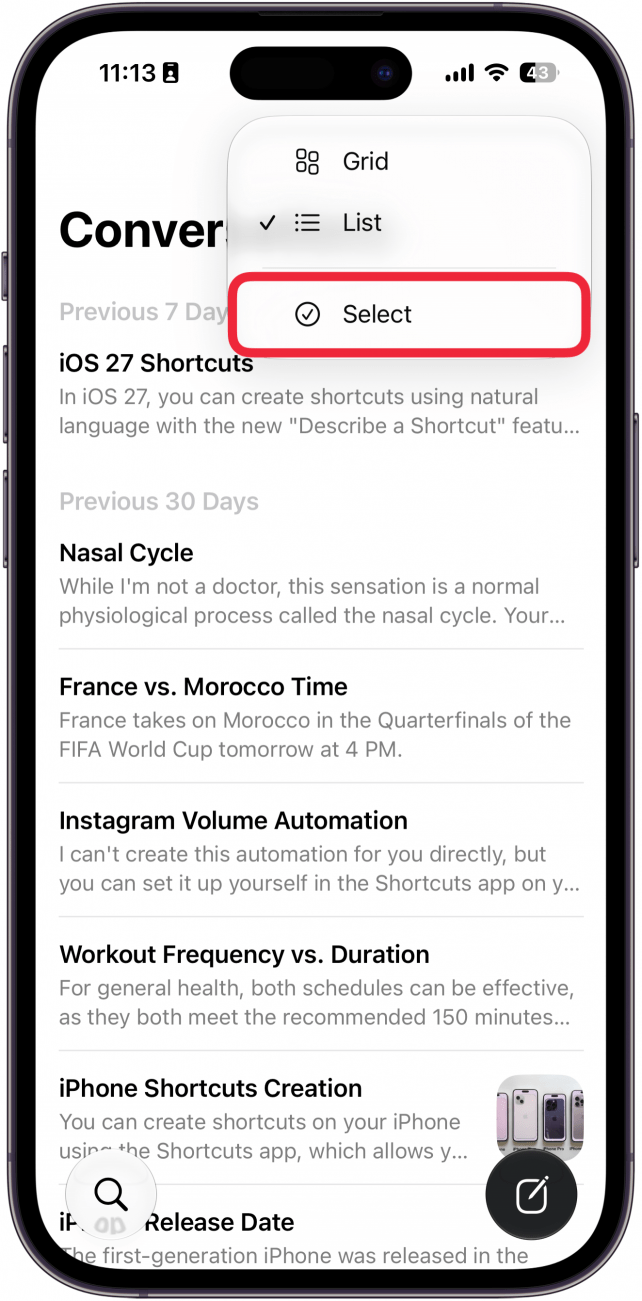
- Tap the menu icon in the upper right (it looks like three horizontal lines) to sort your conversations.
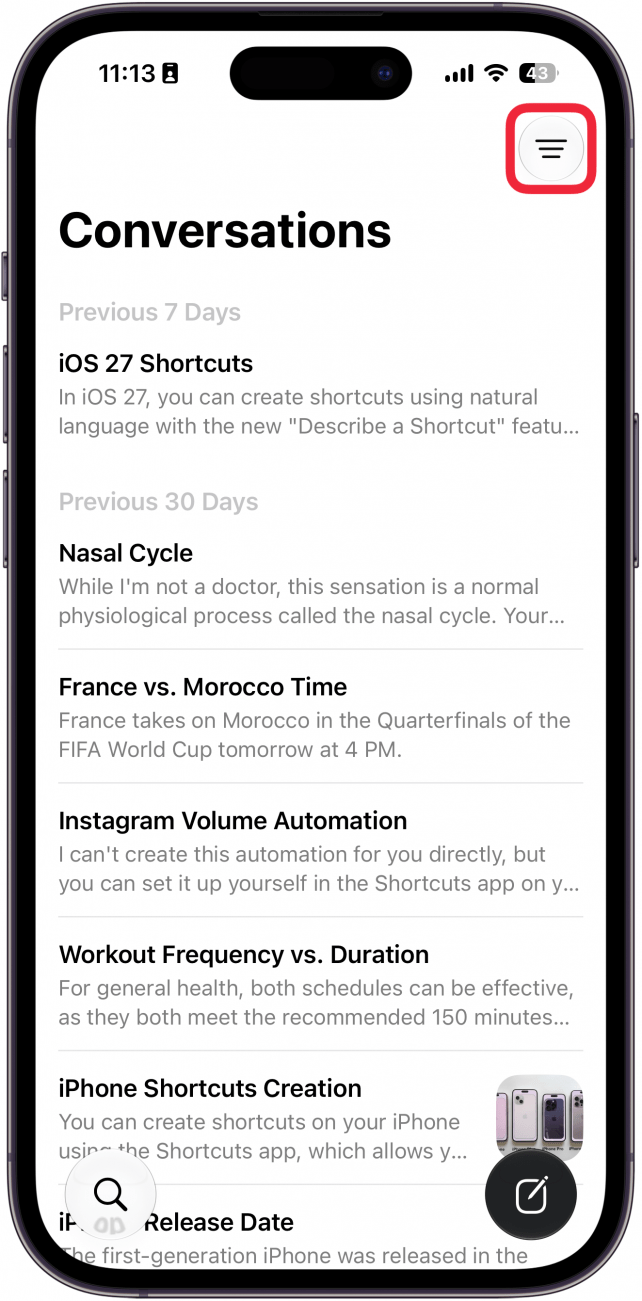
- List view is the default option. You can also sort conversations into a Grid.
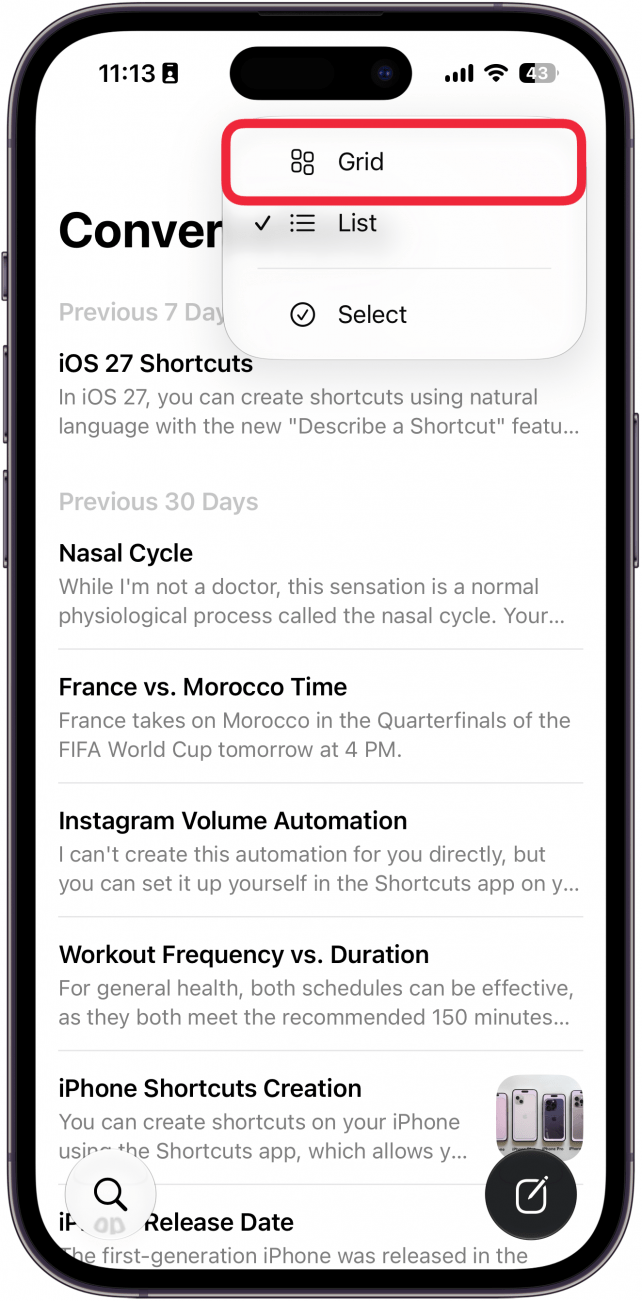
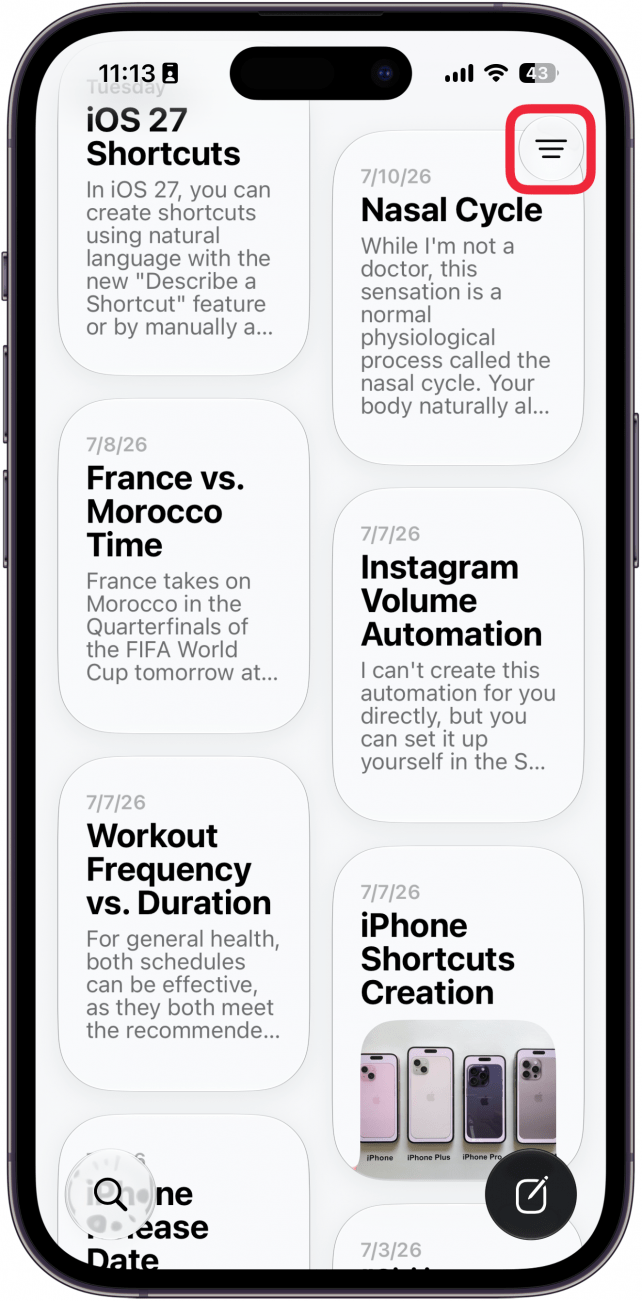
- In Grid view, you can tap the icon again to switch back to List view.
- If you want to delete any conversations, tap Select.
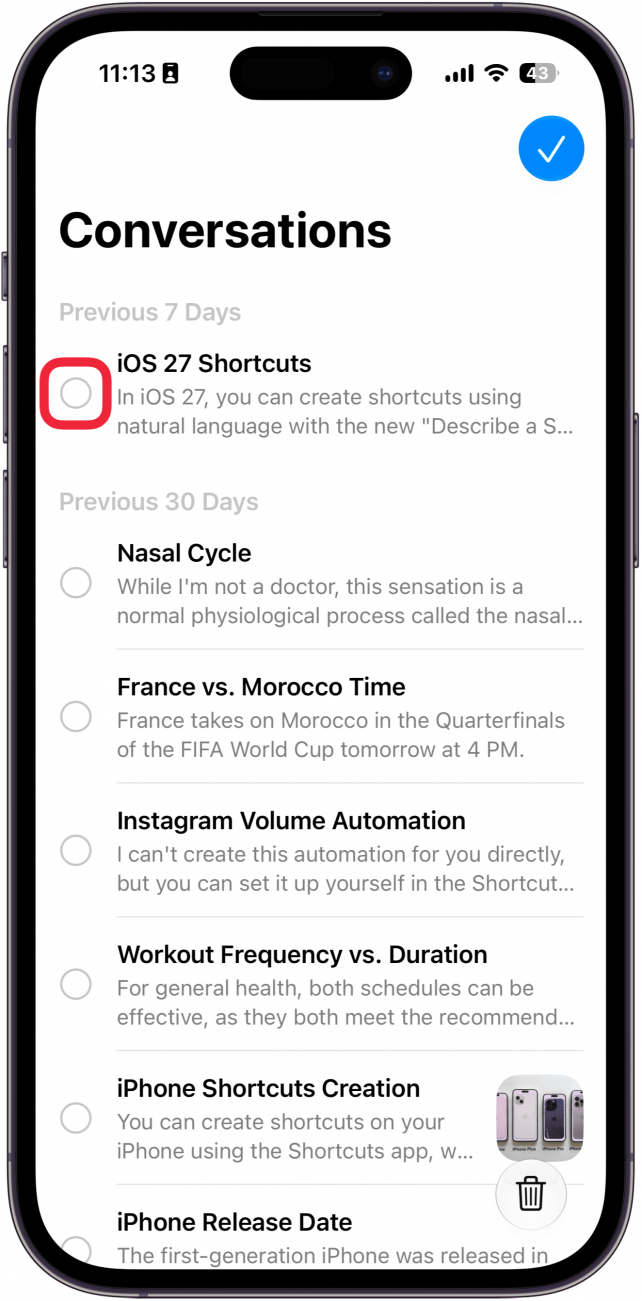
- Tap the circle next to a conversation to select it.
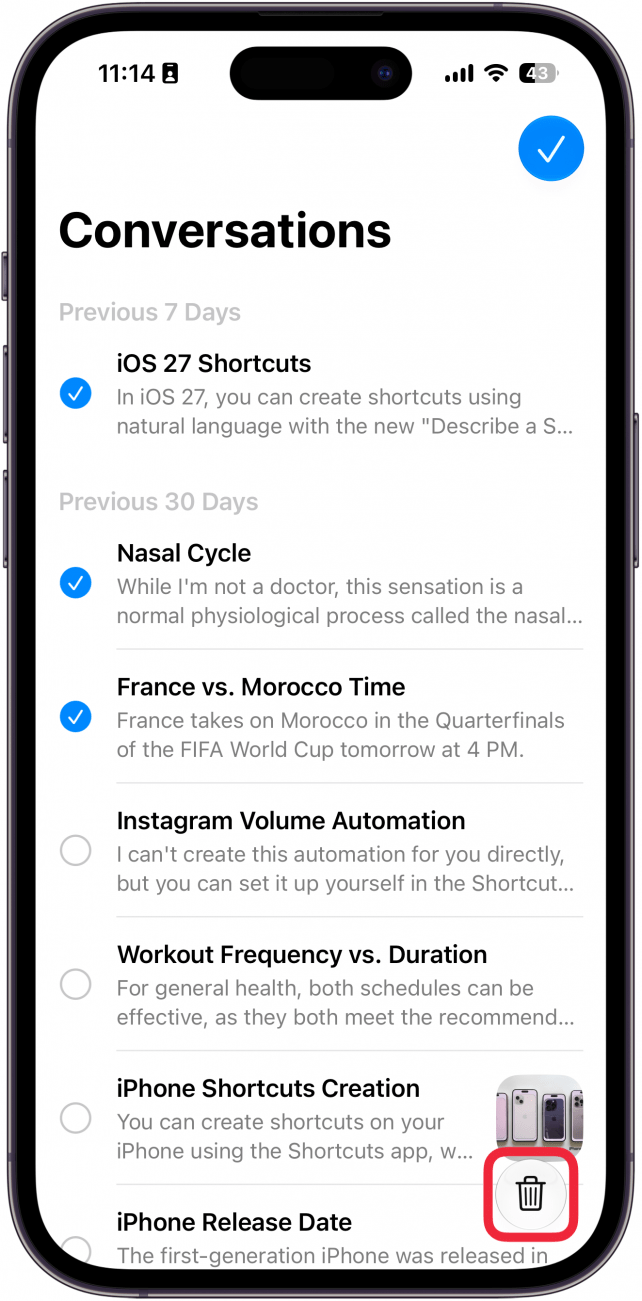
- Tap the delete icon (it looks like a trashcan) to delete the conversation. Note: The Siri app does not ask for confirmation when deleting the conversations and there is no recently deleted folder, so be absolutely certain you want to delete the conversation before tapping the delete icon.
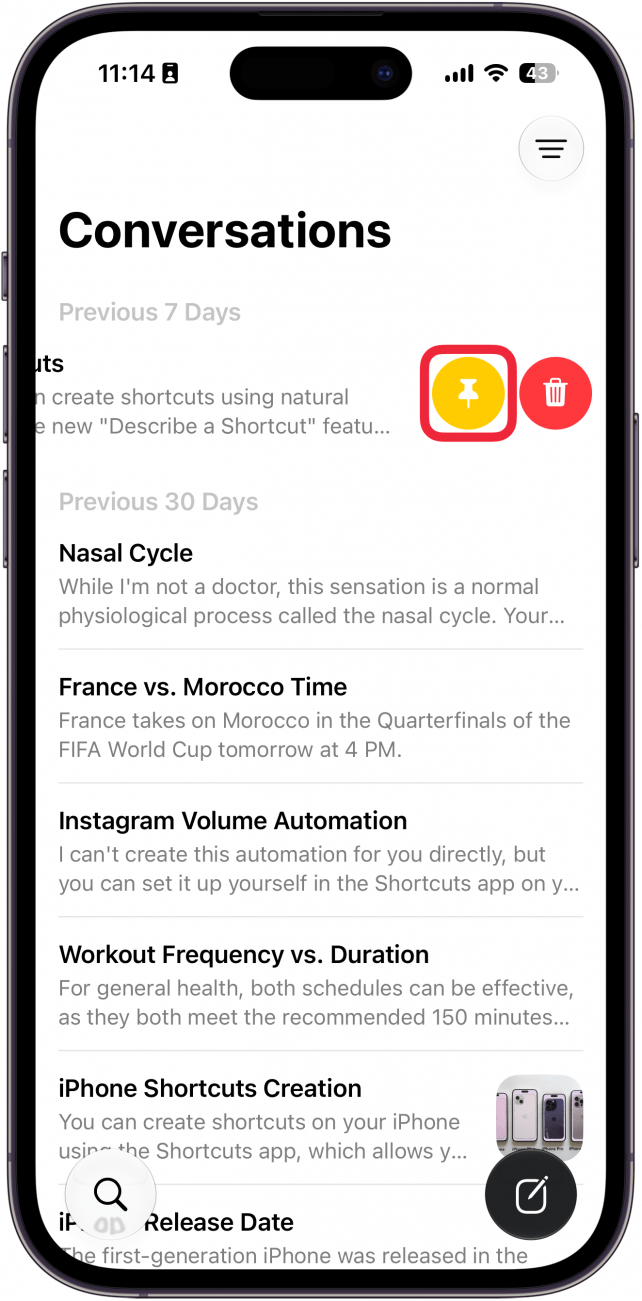
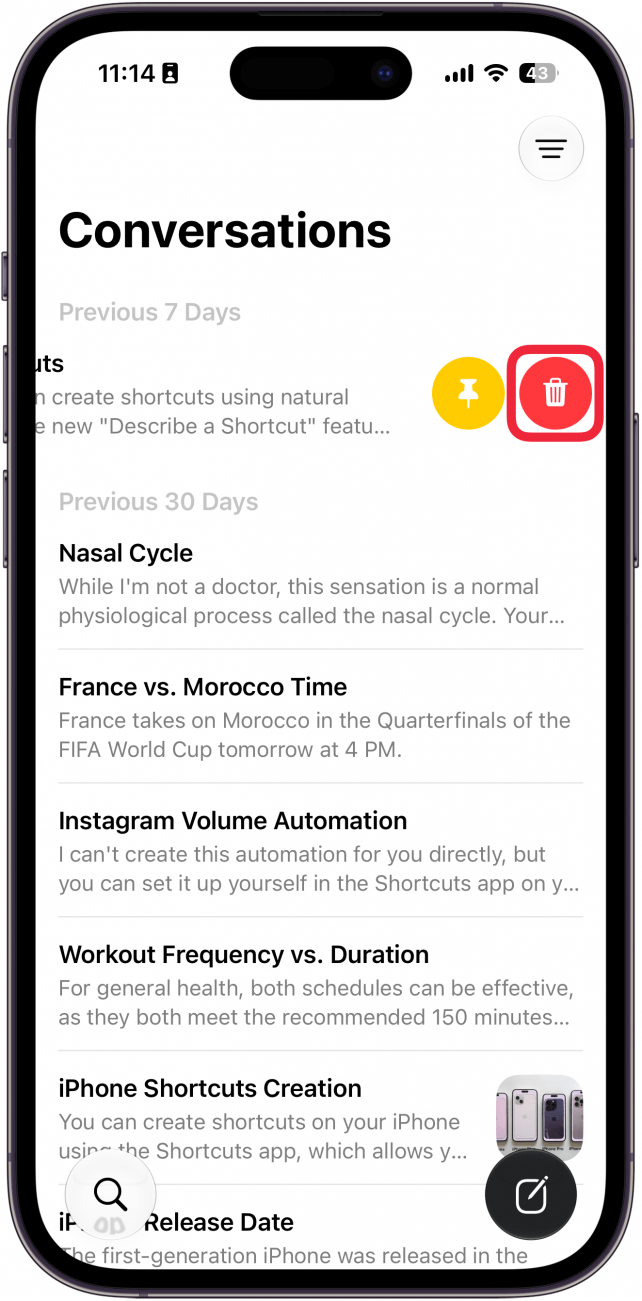
- You can also swipe left on a conversation for extra options.
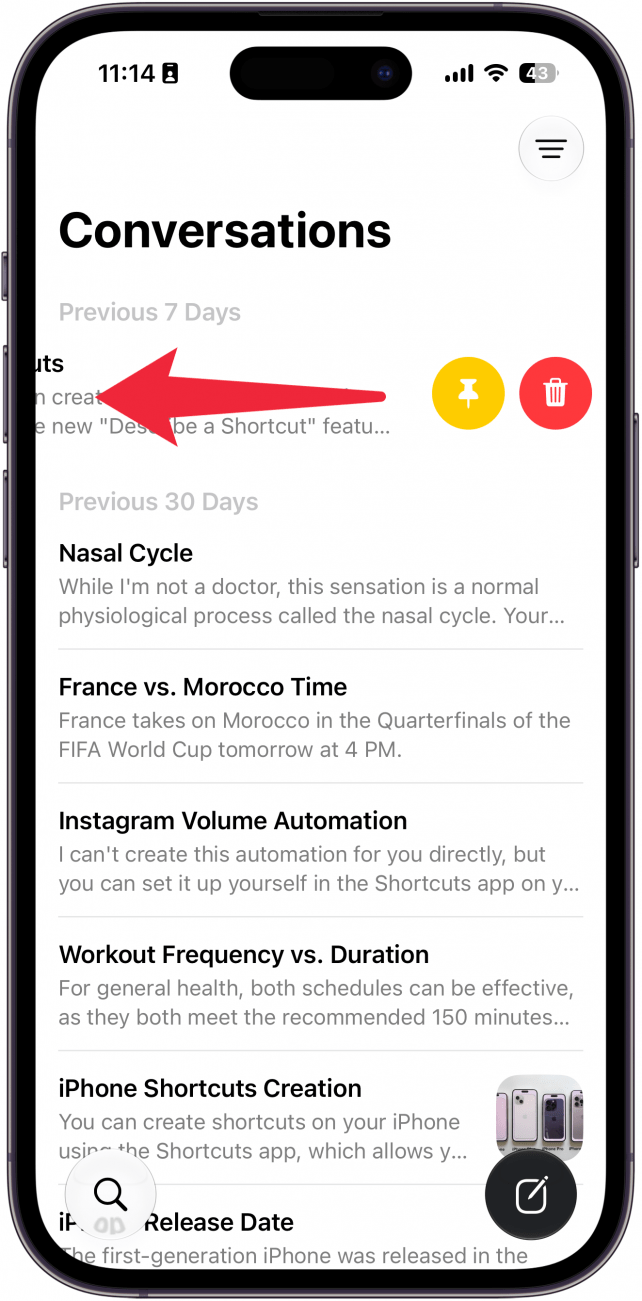
- Tap the pin icon to pin a conversation, which moves it to the top of the list.
- Tap the delete icon to delete it.
That's how to use the new Siri app on iPhone! Now, if you're ever in a situation where you can't speak aloud to Siri, you can just type instead using the app. If you can't figure out how to access the new Siri app, you may need to sign up for the waitlist first. Don't worry, we'll show you how to join the Siri AI waitlist.

Every day, we send useful tips with screenshots and step-by-step instructions to over 600,000 subscribers for free. You'll be surprised what your Apple devices can really do.

Rhett Intriago
Rhett Intriago is a Feature Writer at iPhone Life, offering his expertise in all things iPhone, Apple Watch, and AirPods. He enjoys writing on topics related to maintaining privacy in a digital world, as well as iPhone security. He’s been a tech enthusiast all his life, with experiences ranging from jailbreaking his iPhone to building his own gaming PC.
Despite his disdain for the beach, Rhett is based in Florida. In his free time, he enjoys playing the latest games, spoiling his cats, or discovering new places with his wife, Kyla.

 Leanne Hays
 Rhett Intriago
 Rachel Needell
 Cullen Thomas

 Olena Kagui